Skip to content
Learning Center Modules Cross Connection Setup

Cross Connection Setup

Add backflow assemblies, testers, and gauges so testing workflows, compliance tracking, and reporting work correctly across your system.

Before You Start

The Cross Connection area is where you manage the records that support backflow testing workflows. Setting up Assemblies, Testers, and Gauges helps ensure test entry, compliance tracking, and reporting are consistent across your system.


What You’ll Set Up
  • Assemblies – the devices being tested and tracked over time.
  • Testers – the certified people or companies who perform tests.
  • Gauges – the equipment used during testing that supports audit trails.
Recommended Order
  • Add Testers and Gauges first so they are available during test entry.
  • Add Assemblies next so each device can be linked to the correct Location and record history.

Set Up Assemblies

Assemblies are the backflow device records you track over time, including tests, repairs, replacements, and compliance history. This section walks through how to Add an assembly, Edit it later for accuracy, and Build the record so it stays linked to the correct location and is ready for testing and reporting.


Add an Assembly

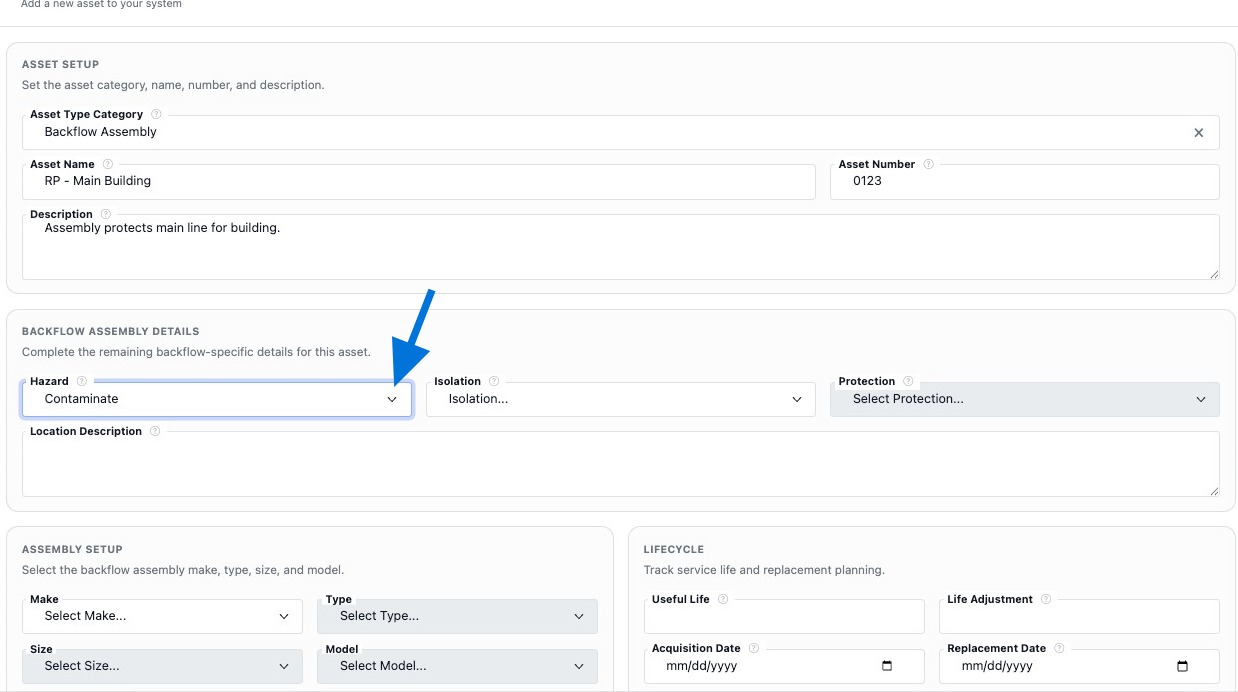
Use + Add Assembly to create the device record that all tests and compliance history will attach to. If your team tracks assemblies as assets, this is where you will enter the device details and link it to a Location.

How To Open Add Assembly
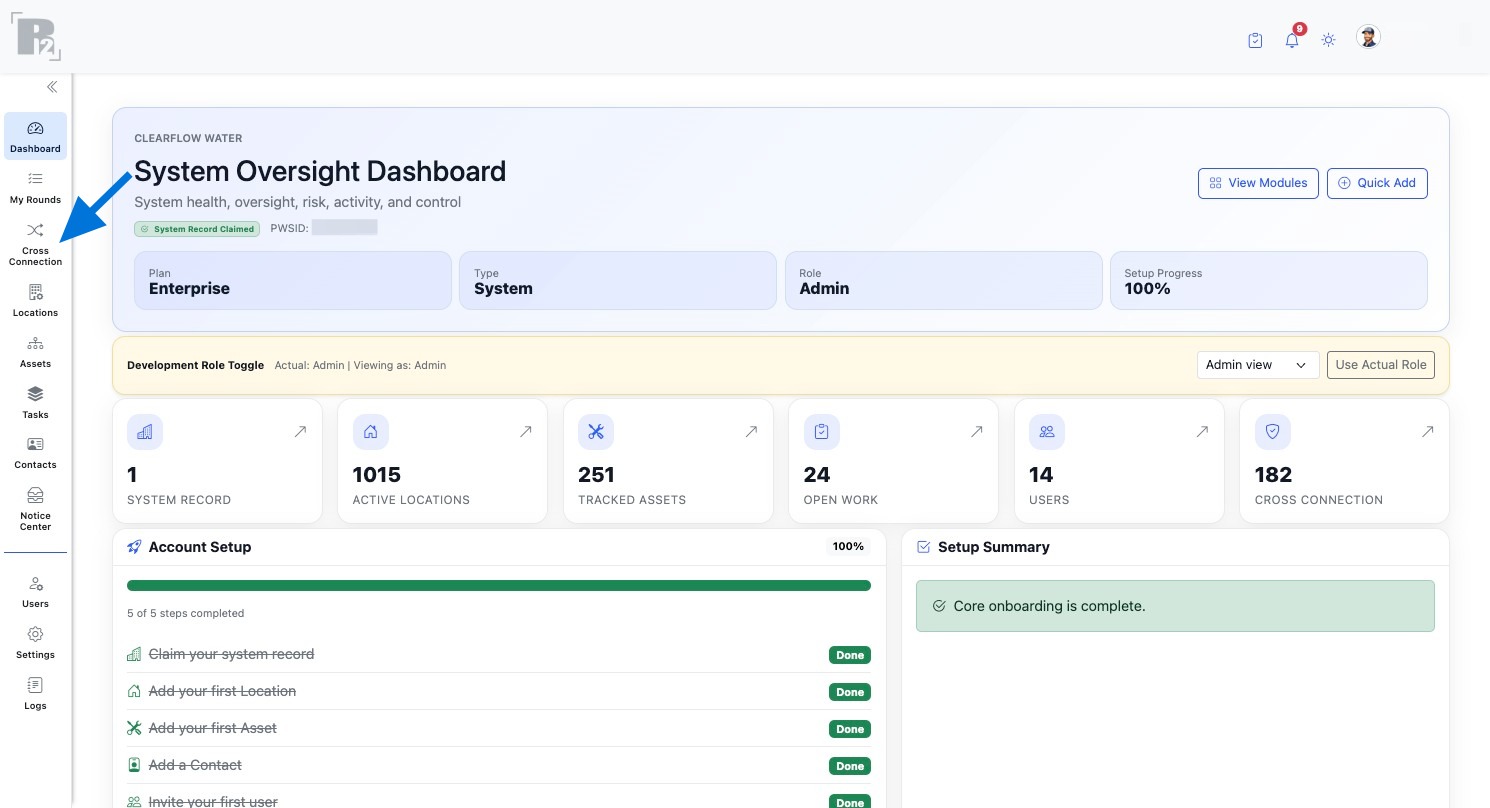
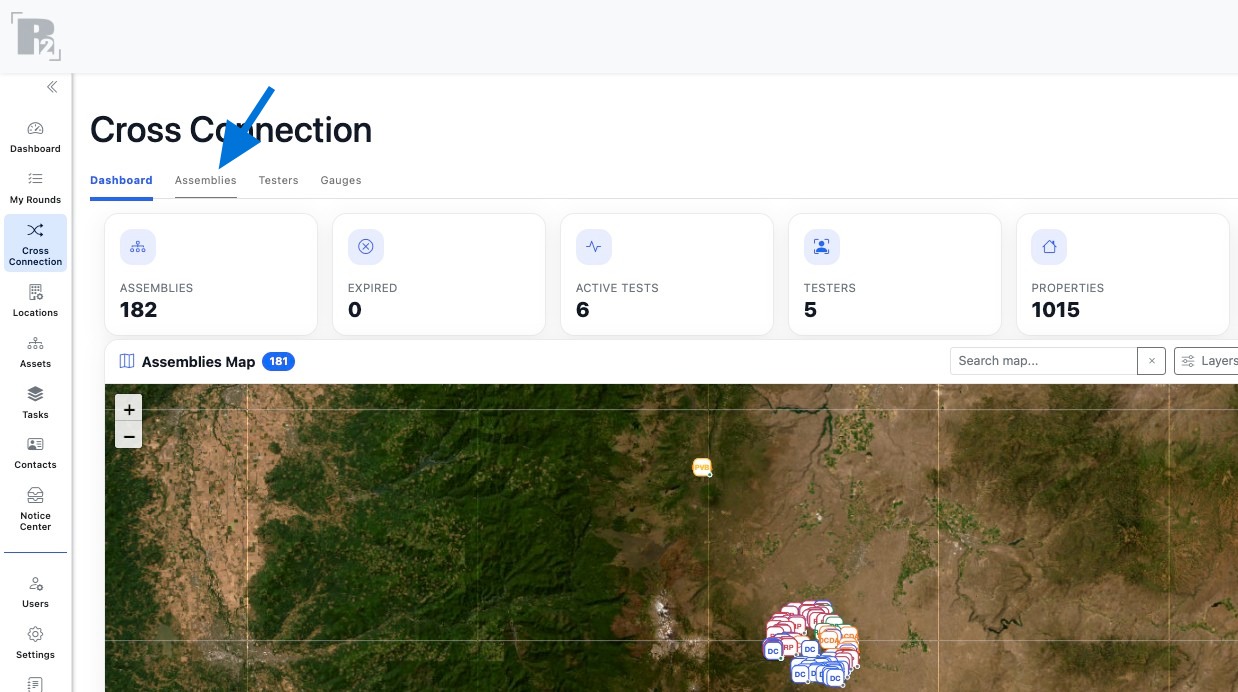
  1. From the Cross Connection Dashboard, click the Assemblies tab.
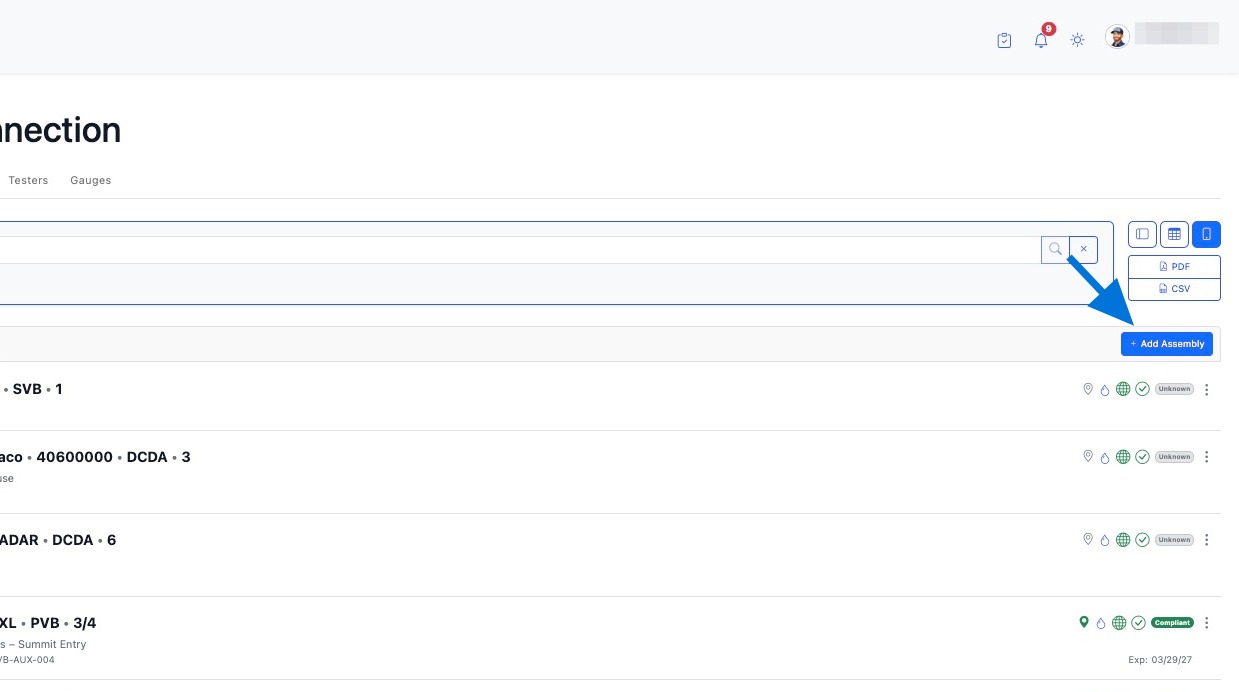
  2. Click + Add Assembly.
Fill Order
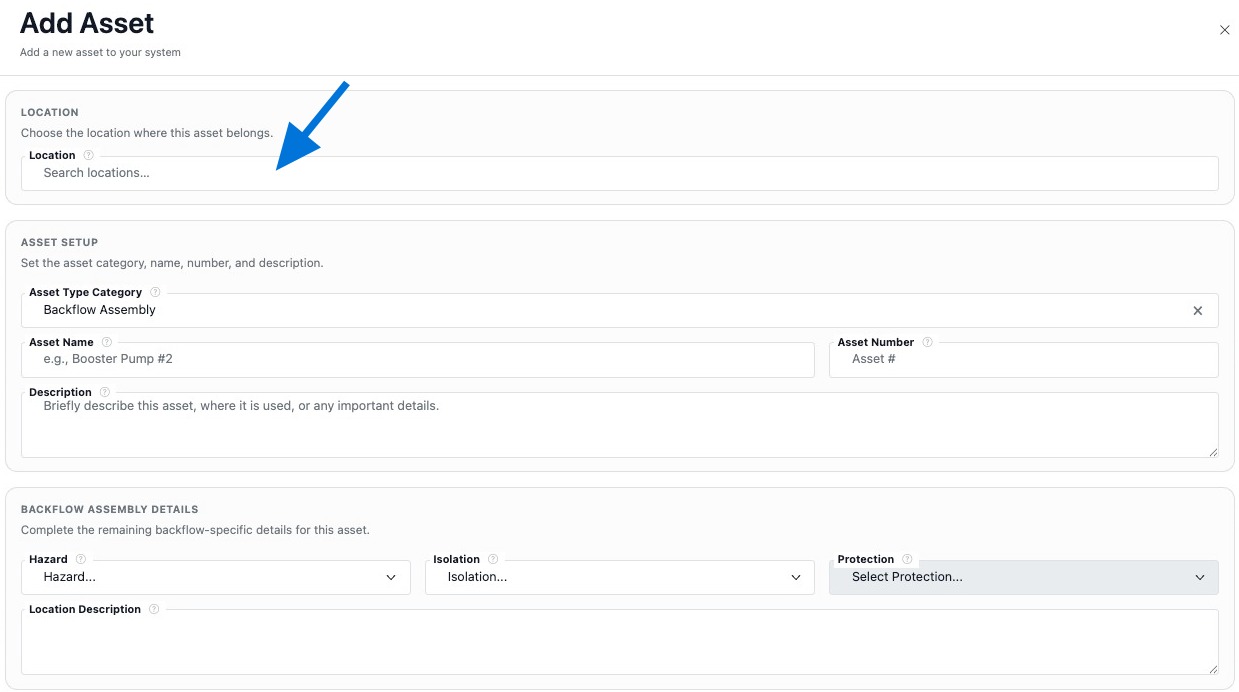
  1. Select Make.
  2. Select Type filtered by Make.
  3. Select Size filtered by Make + Type.
  4. Select Model filtered by Make + Type + Size.
  5. Enter Serial Number.
  6. Select Isolation Type, then choose Protection.
  7. Select Hazard.
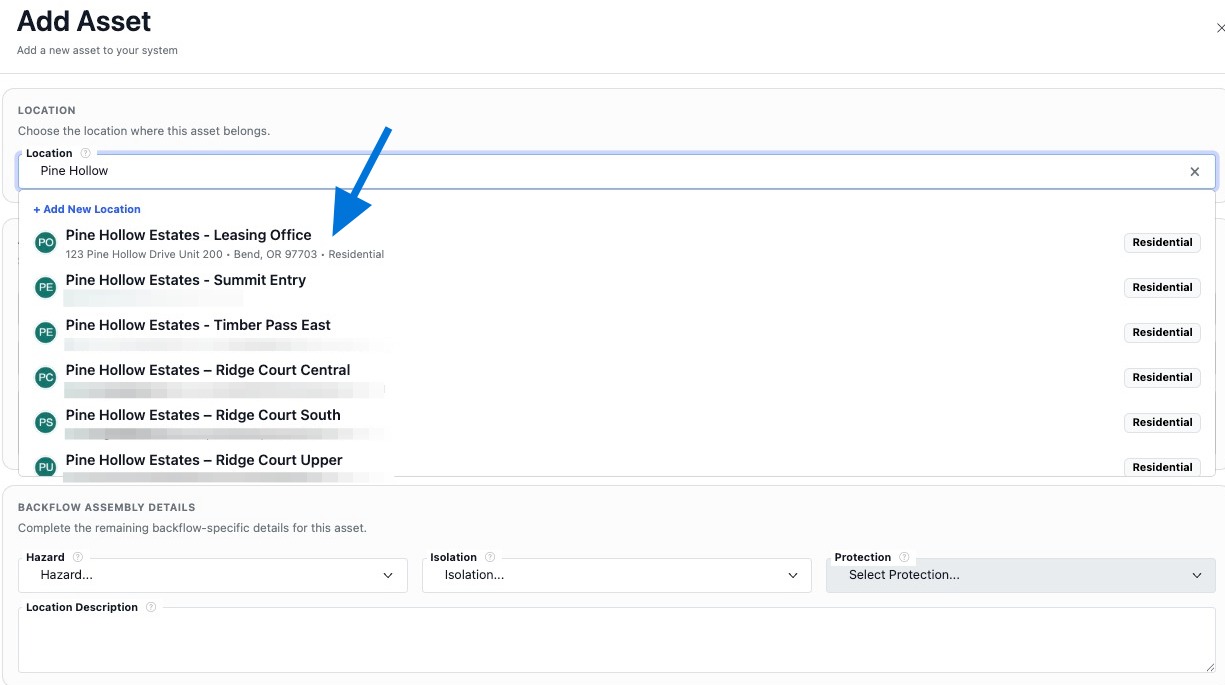
  8. Link the Location where the assembly is installed.
  9. Optional – add Photos / Files and GPS Coordinates.
  10. Click Create Asset to save.
Add Assembly Fields
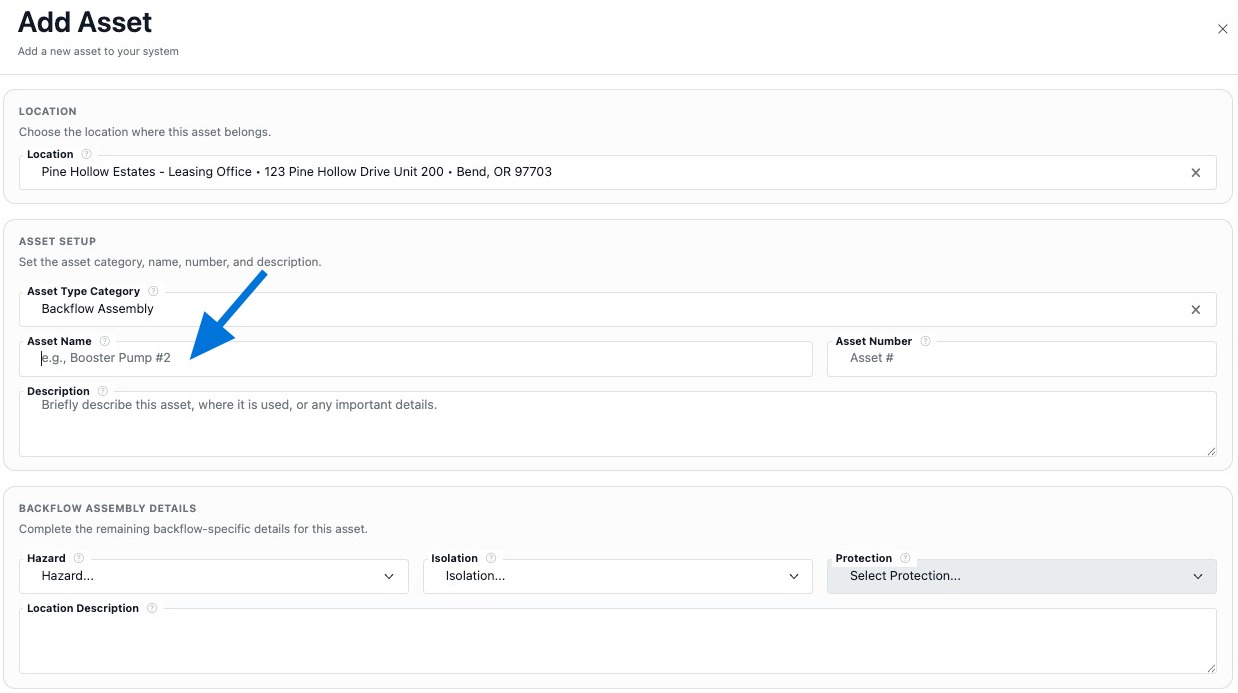
  • Asset Name – the label your team will search for.
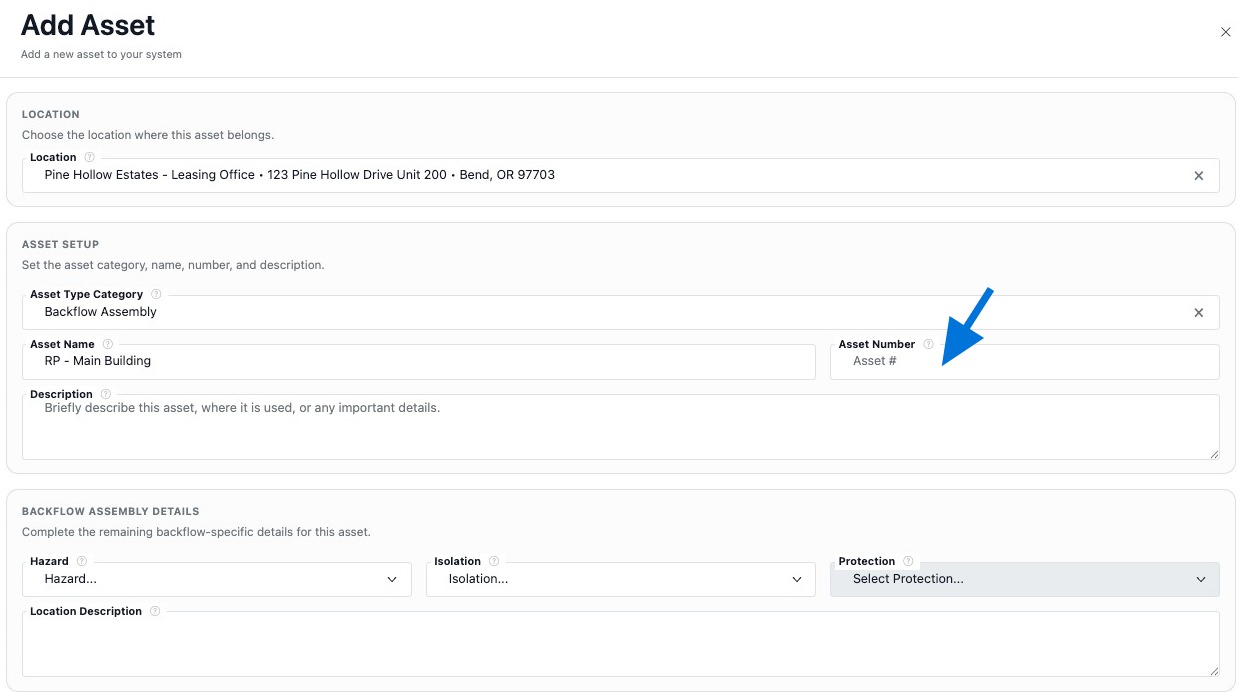
  • Asset Number – your internal tag or identifier.
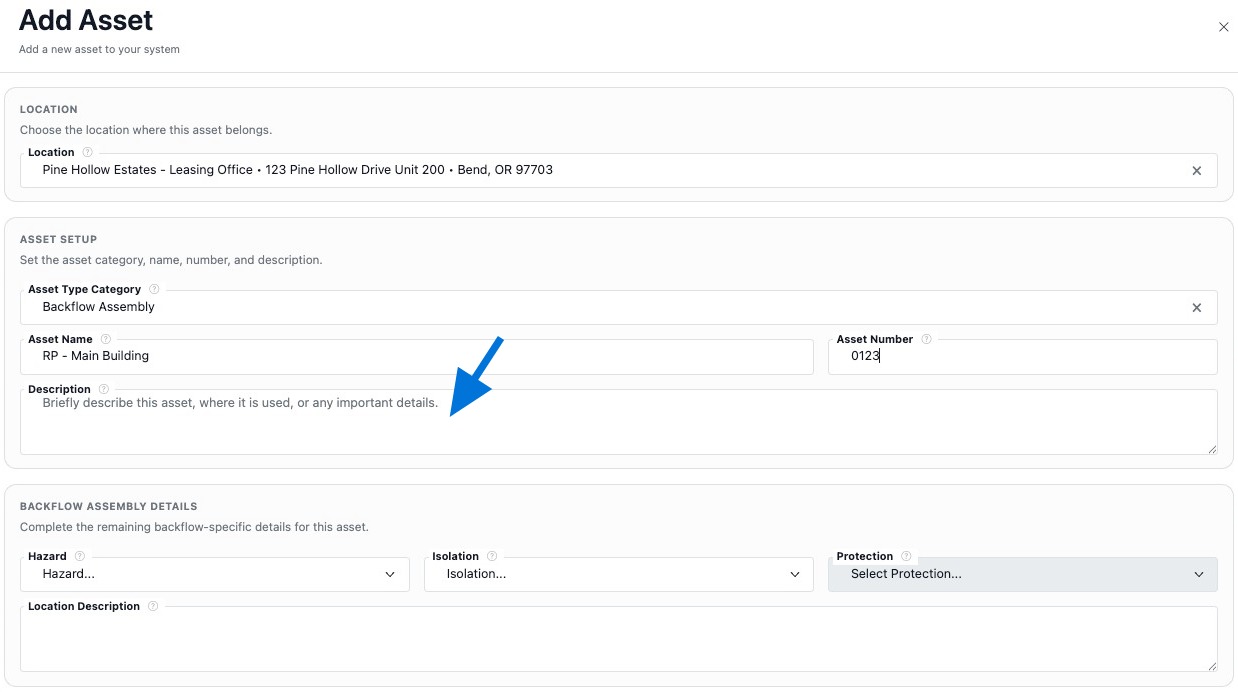
  • Asset Description – access notes, odd markings, or anything to verify later.
  • Responsible Party – optional, workflow-dependent.
Location Link
  • Location connects the assembly to the correct location for tasks, testing, and reporting.
Backflow Assembly Details
  • Make – manufacturer or brand.
  • Type – device type filtered by Make.
  • Size – nominal size filtered by Make + Type.
  • Model – filtered by Make + Type + Size.
  • Serial Number – manual entry from the nameplate.
  • Isolation Type – where installed.
  • Protection – what is protected.
  • Hazard – pollutant vs contaminate.
Helpful Tips
  • Use the device nameplate to confirm Make, Type, Size, Model, and Serial Number.
  • If you change Make, re-check filtered fields like Type, Size, and Model.
  • If a detail is unclear, enter the best match and note it in Asset Description.
  • Link the correct Location before saving.
Edit an Assembly

Use Edit Assembly to update device details, correct classification fields, adjust assignment information, or refine manufacturer data after the assembly has been created. Edit access is available from the assembly row 3-dot menu.


How To Edit an Assembly
  1. From the Cross Connection Dashboard, click the Assemblies tab.
  2. Locate the assembly you want to update in the list.
  3. Click the 3-dot menu on that row.
  4. Select Edit Assembly.
  5. Update the fields as needed and click Save Changes.
What You Can Update
  • Basic Info such as Asset Name, Asset Number, Description, and Status.
  • Assignment including linked Location and Responsible Party.
  • GPS Coordinates using manual entry or Use Current Location.
  • Manufacturer Details including Make, Type, Size, and Model.
  • Backflow Assembly Details such as Hazard, Isolation Type, and Protection.
  • Additional Details like acquisition data, costs, notes, and vendor.
Helpful Tips
  • If you change Make, re-check Type, Size, and Model since those lists are filtered.
  • Use Asset Description to capture field notes or items needing later verification.
  • After editing, confirm the assembly is still linked to the correct Location.
  • Keep naming consistent so searching and reporting remain clean across your system.
Build the Assembly Record

After an assembly is added, use the Assembly Summary page to build out the record. This is where you attach supporting details, connect the assembly to work, and keep a clean history for compliance and reporting.

How To Build the Assembly Record
  1. From the Cross Connection Dashboard, click the Assemblies tab.
  2. Click the assembly row to open the Assembly Summary.
  3. Use the summary sections like Notes, Files, Tasks, Tests, Location, and others to add the missing pieces.
  4. Optional – use the Actions button for additional actions when available.
What To Build on the Summary Page
  • Notes – add access instructions, site context, or anything the next tester or tech should know.
  • Files – upload photos, nameplate pictures, install documents, or supporting PDFs.
  • Tasks – create or link work tied to this assembly.
  • Tests – start or review tests so the assembly has an audit-ready history.
  • Assembly Details – confirm Make, Type, Size, Model, Serial, and classification fields.
  • GPS Coordinates – set the assembly location if you need map precision.
  • Location – verify the assembly is tied to the correct location record.
  • Notices – attach compliance notices or letters when required.
  • Activity – review the timeline so you can see what changed and when.
  • Share Access (QR) – use the QR code to share or verify the record when needed.
Helpful Tips
  • Add at least one photo like a nameplate or install photo so field verification is easier.
  • Keep Notes short and action-based.
  • If you update Make, re-check Type, Size, and Model since those lists are filtered.
  • Use Tasks for follow-up work so nothing gets lost after a failed test or repair.

Set Up Testers

Testers are the certified people or companies who perform backflow tests. This section walks through how to Add testers, Edit tester information, and Build the tester record so tester details stay clean, selectable during test entry, and reliable in compliance reporting.


Add a Tester

Use + Add Tester to create a tester record that can be selected during test entry. Adding certification details and files helps keep documentation audit-ready.

How To Open Add Tester
  1. From the Cross Connection Dashboard, click the Testers tab.
  2. Click + Add Tester.
Fill Order
  1. Enter First Name and Last Name.
  2. Enter the tester Email.
  3. Enter Certification #.
  4. Select or enter Certification Type.
  5. Set the Certification Expiration date.
  6. Optional – upload the Tester Certification file.
  7. Optional – add Tester Gauge details if this tester uses a dedicated gauge record.
  8. Optional – upload a Gauge Calibration Certificate.
  9. Click Add Tester to save.
Add Tester Fields
  • Name – the primary label you will see in tester selectors and reports.
  • Email – contact and unique identifier for the tester record.
  • Certification # – the license or cert number for verification and compliance paperwork.
  • Certification Type – the cert classification used by your jurisdiction or workflow.
  • Certification Expiration – helps keep certifications current for audit readiness.
  • Upload Tester Certification – stores proof or documentation.
Tester Gauge
  • Gauge Name – nickname or label for quick selection.
  • Gauge Make and Gauge Model – equipment identification.
  • Serial Number – unique gauge identifier.
  • Calibration Date – supports equipment verification and audit trails.
  • Upload Gauge Calibration Certificate – stores calibration proof.
Helpful Tips
  • Use consistent naming, especially if multiple testers work under one company name.
  • Keep Certification Expiration updated so reports stay audit-ready.
  • If you have the document, upload it now so compliance packets are easier later.
Edit a Tester

Use Edit Tester to correct tester information, update certification details, replace uploaded documents, or keep gauge information current. Edit access is available from the tester row 3-dot menu.


How To Edit a Tester
  1. From the Cross Connection Dashboard, click the Testers tab.
  2. Find the tester row you want to update.
  3. Click the 3-dot menu on that row.
  4. Select Edit Tester.
  5. Update fields and click Save Changes.
What You Can Update
  • Tester Info – name and email.
  • Certification – number, type, and expiration date.
  • Uploads – tester certification file and gauge calibration certificate.
  • Tester Gauge – optional gauge name, make, model, serial number, and calibration date.
Helpful Tips
  • Keep expiration current to avoid compliance gaps.
  • If a tester changes companies or email, update it so records stay consistent in reporting.
  • Upload the latest certification and calibration documents when renewed.
Build the Tester Record

After a tester is created, build the record by keeping certifications, uploads, and gauge details current. Clean tester records make test entry faster and keep reports and compliance documentation accurate.

What To Keep Updated
  • Certification Info – number, type, and expiration date.
  • Certification Upload – most recent proof document.
  • Tester Gauge – optional gauge identity and Calibration Date.
  • Calibration Upload – current calibration certificate when applicable.
  • Consistency – naming and email format so testers do not get duplicated.
Helpful Tips
  • If multiple testers share a company name, use a consistent format like Last, First or Company – Tech Name.
  • Renewals are the best time to update expiration and replace uploads.
  • Keeping gauge calibration current supports stronger audit trails and documentation.

Set Up Gauges

Gauges are the testing instruments used during backflow testing. This section walks through how to Add a gauge, Edit it later for accuracy, and Build the gauge record so calibration details and documentation stay audit-ready.


Add a Gauge

Use + Add Gauge to create a gauge record that can be referenced during testing. Keeping gauge details and calibration documentation current supports clean reporting and stronger audit trails.

How To Open Add Gauge
  1. From the Cross Connection Dashboard, click the Gauges tab.
  2. Click + Add Gauge.
Fill Order
  1. Optional – enter Gauge Name.
  2. Enter Gauge Make.
  3. Enter Gauge Model.
  4. Enter the Serial Number.
  5. Select the Calibration Date.
  6. Optional – upload the Calibration Certificate.
  7. Click Add Gauge to save.
Add Gauge Fields
  • Gauge Name – optional nickname for quick recognition.
  • Gauge Make – manufacturer or brand.
  • Gauge Model – model identifier.
  • Serial Number – the unique gauge identifier.
  • Calibration Date – the date the gauge was calibrated.
  • Calibration Certificate – optional upload for documentation.
Helpful Tips
  • Use a consistent naming pattern like Make – Serial or Nickname – Serial.
  • Keep Calibration Date current so reporting stays audit-ready.
  • If you have the document, upload the Calibration Certificate now to avoid chasing it later.
Edit a Gauge

Use Edit Gauge to correct gauge details, update calibration information, or replace supporting documentation. Edit access is available from the gauge row 3-dot menu.


How To Edit a Gauge
  1. From the Cross Connection Dashboard, click the Gauges tab.
  2. Find the gauge row you want to update.
  3. Click the 3-dot menu on that row.
  4. Select Edit Gauge.
  5. Update fields and click Save Changes.
What You Can Update
  • Gauge Name – nickname or label.
  • Gauge Make and Gauge Model – identification details.
  • Serial Number – unique identifier.
  • Calibration Date – keep current for audit readiness.
  • Calibration Certificate – replace or upload documentation when renewed.
Helpful Tips
  • Update Calibration Date as soon as a gauge is recalibrated.
  • Replace the Calibration Certificate upload when a new cert is issued.
  • Use consistent naming so gauges do not get duplicated across your system.
Build the Gauge Record

After a gauge is created, build the record by keeping calibration details and documentation up to date. Clean gauge records support test entry, compliance documentation, and audit trails.

What To Keep Updated
  • Calibration Date – most recent calibration date.
  • Calibration Certificate – current proof document when applicable.
  • Identity Fields – make, model, and serial number.
  • Consistency – naming pattern that prevents duplicates.
Helpful Tips
  • Use Serial Number as the source of truth if gauge naming varies across teams.
  • When you recalibrate, update the Calibration Date and replace the uploaded certificate.
  • Keeping gauge records current makes compliance documentation easier when assembling reports.