Skip to content
Learning Center Modules Cross Connection Setup

Cross Connection Setup

Add backflow assemblies, testers, and gauges so testing workflows, compliance tracking, and reporting work correctly across your system.

Before You Start

Set up the records that support assembly testing, compliance tracking, and connected backflow workflows.

Recommended Assembly Flow

The recommended process is to create the Backflow Assembly while linking it to the correct Location so you do not have to go back and connect the record later.

What You’ll Set Up

This guide covers Assemblies, Testers, and Gauges so test entry, compliance tracking, and reporting have the records they need.

What You May Need Ready

Have the location, assembly nameplate details, hazard and protection information, tester certification details, and gauge calibration information ready before you begin.

Add a Backflow Assembly and Link It to a Location

Create the assembly record and link it to the correct location during setup so testing, maintenance, and reporting stay connected from the start.
01

Open the Cross Connection module

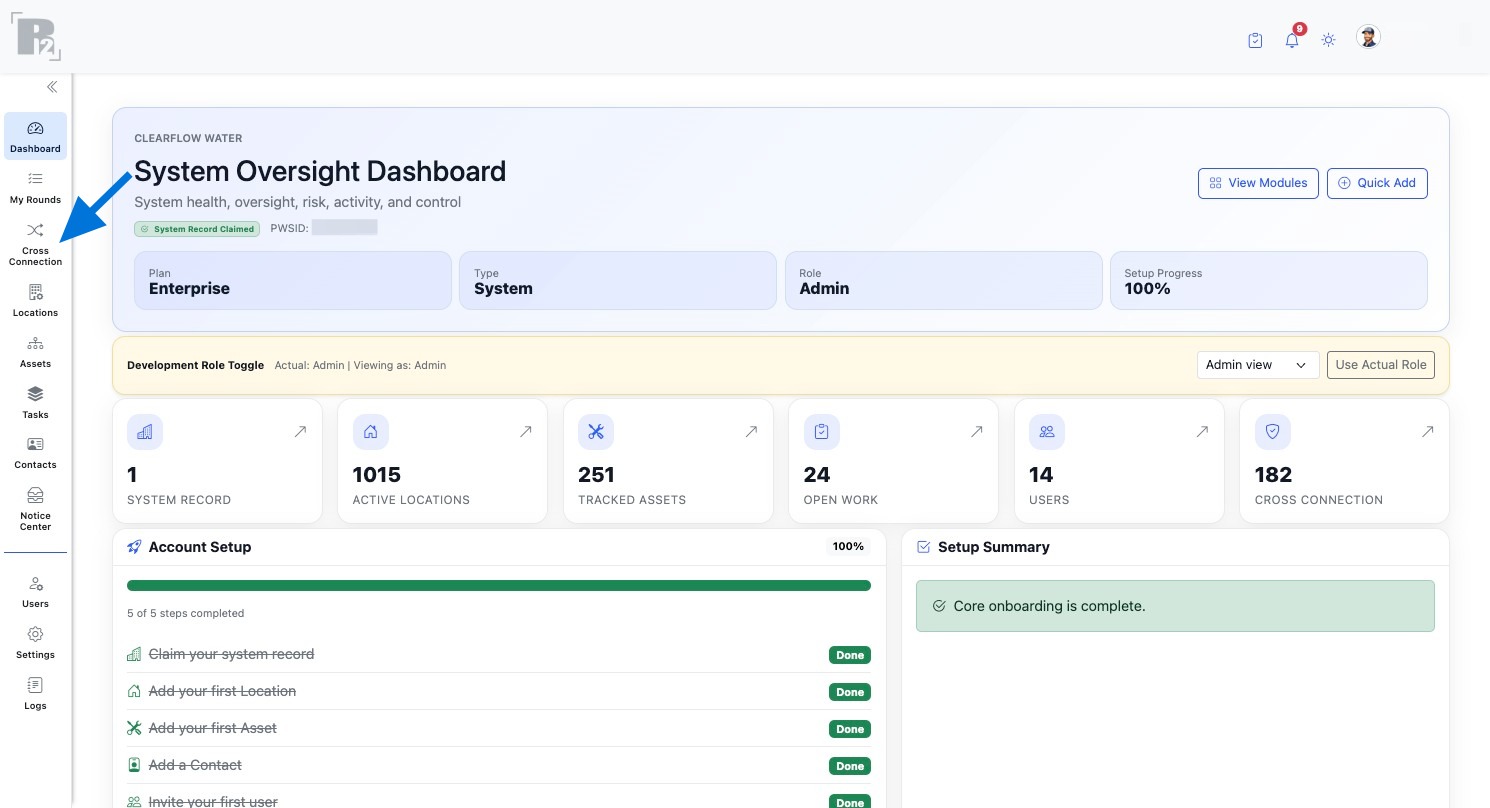
Open the Cross Connection module from the left navigation.

Open the Cross Connection module from the left navigation
02

Open Assemblies and start a new record

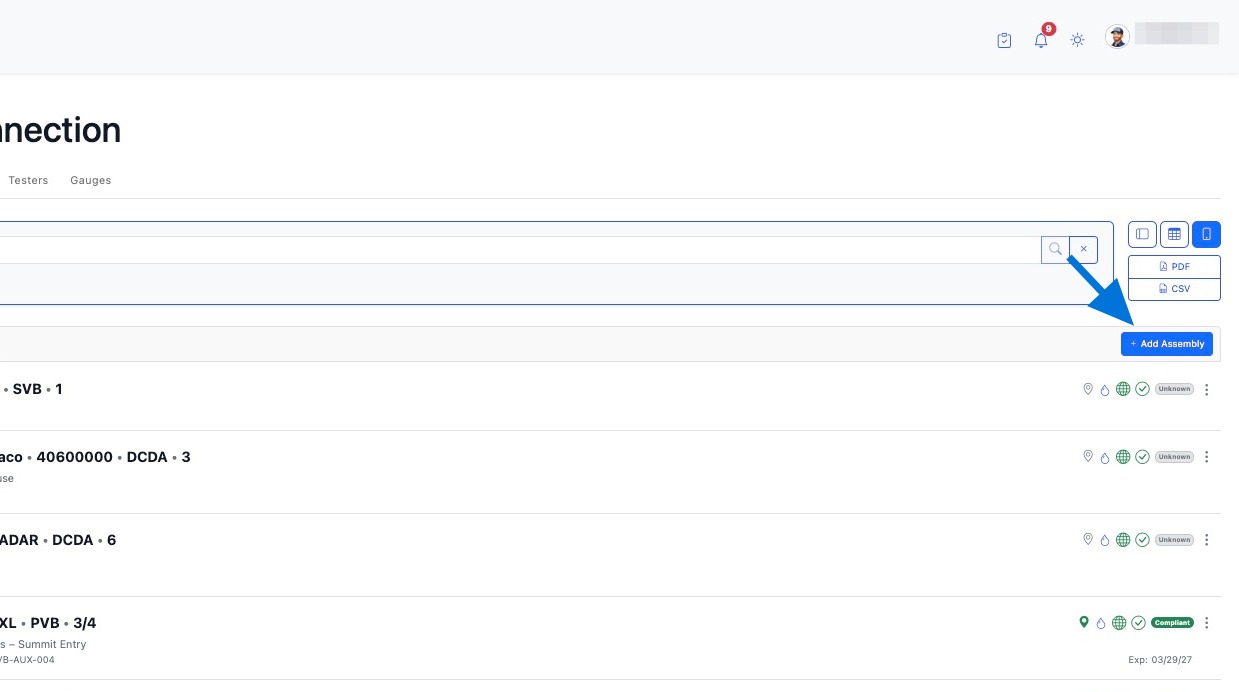
Go to the Assemblies tab, then click Add Assembly to create a new assembly record.

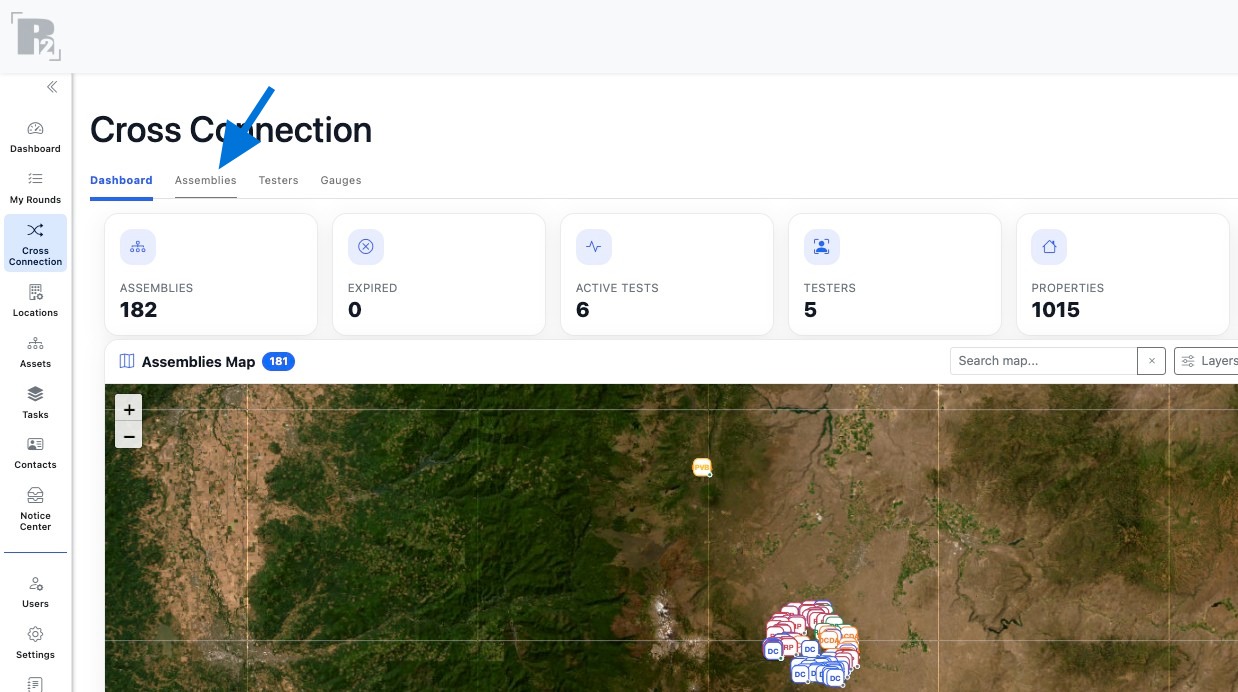
Navigate to the Assemblies tab
Open the Assemblies tab.
Click Add Assembly to create a new assembly record
Start a new assembly record.
03

Link the assembly to a location first

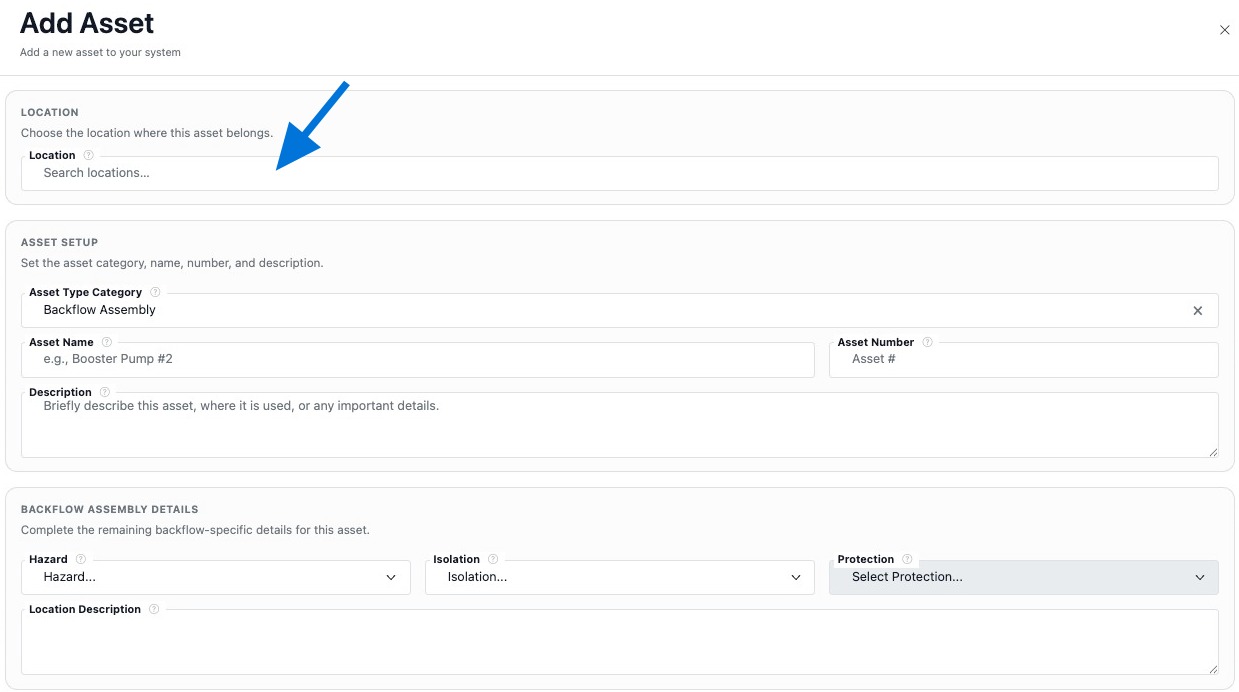
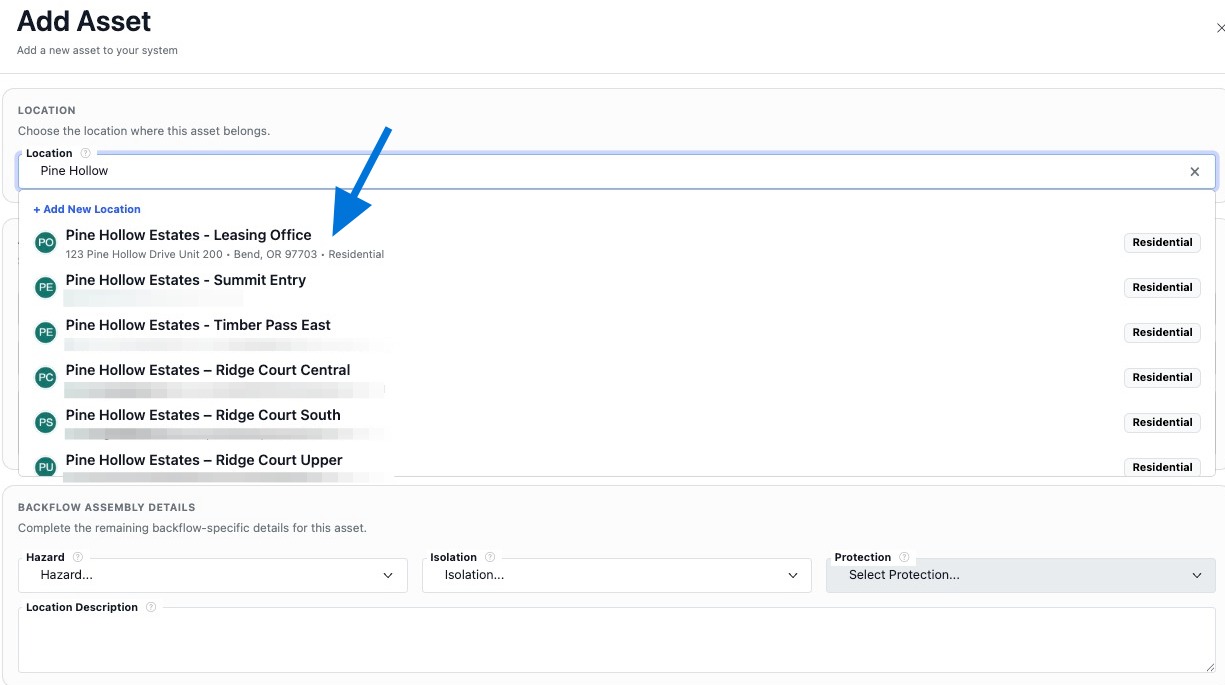
Use the Location field to search for and select the location where the assembly is installed. If the location does not exist yet, create it first, then continue with the assembly record.

Use the Location field to link the assembly to a location record
Use the Location field to link the assembly.
Search for and select the location where the assembly is installed
Search for and select the correct location.
04

Enter the basic assembly identifiers

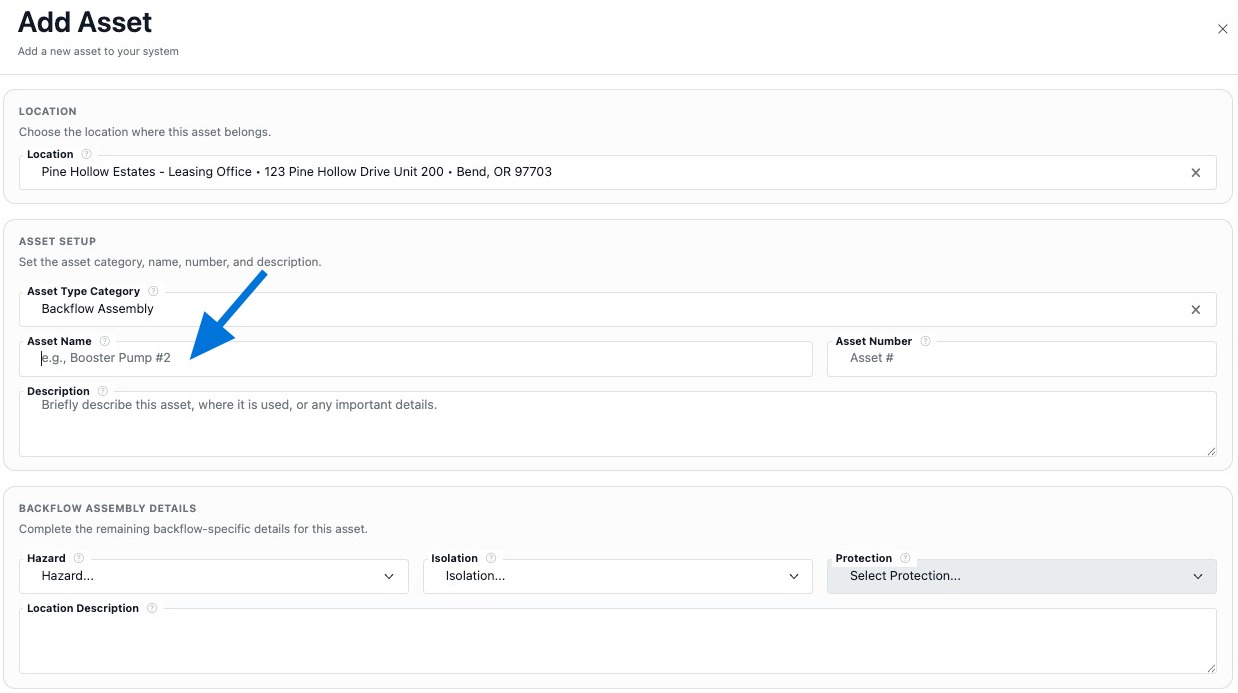
Enter the Asset Name, Asset Number, and Description so the assembly is easy to identify in lists, reporting, and field workflows.

Enter the Asset Name
Enter the Asset Name.
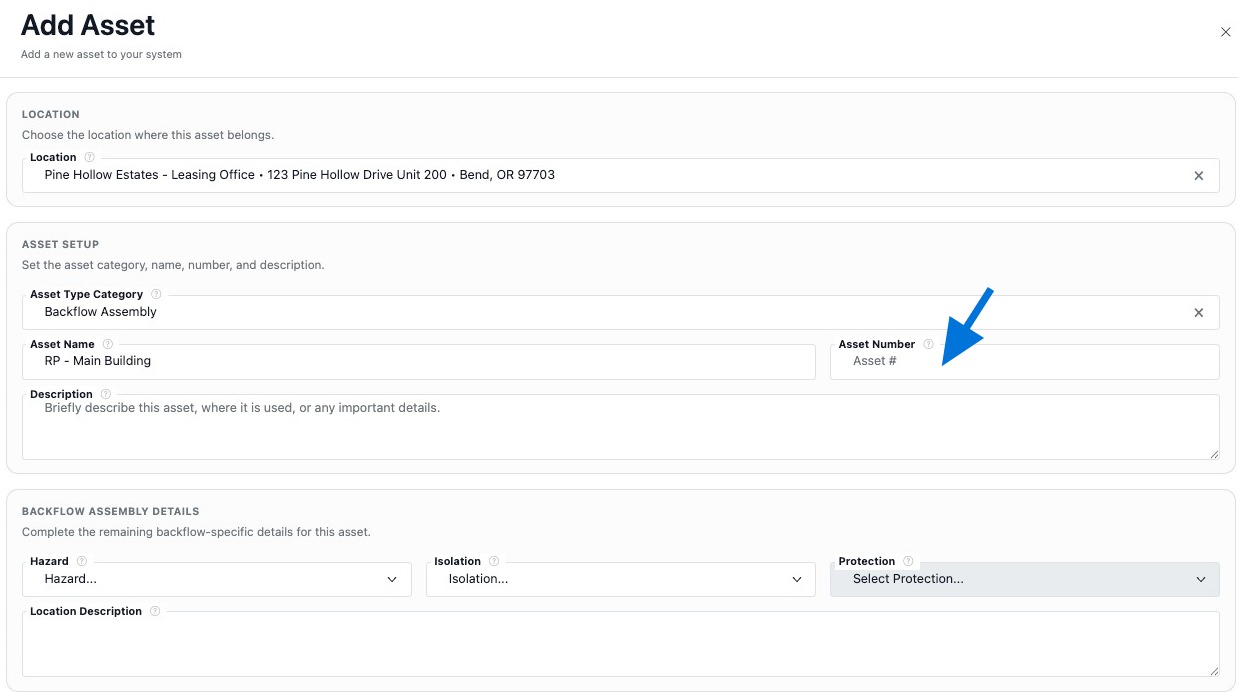
Enter the Asset Number
Enter the Asset Number.
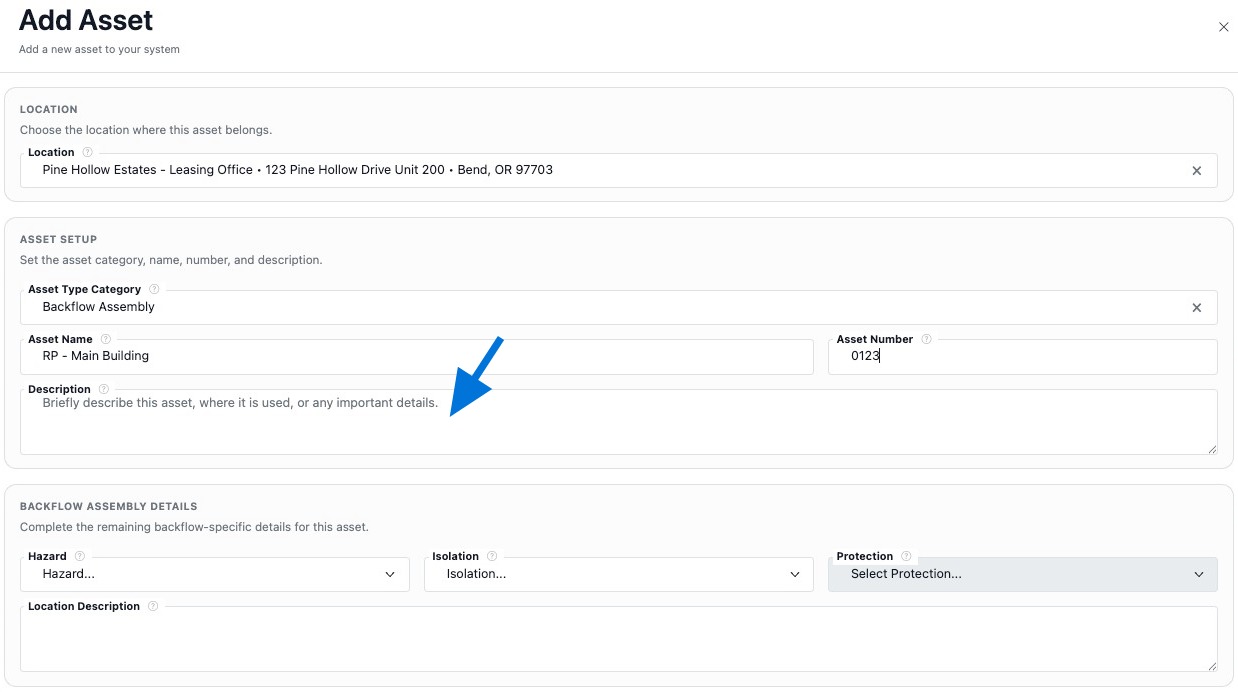
Enter a Description for the assembly
Enter a Description.
05

Define protection and classification details

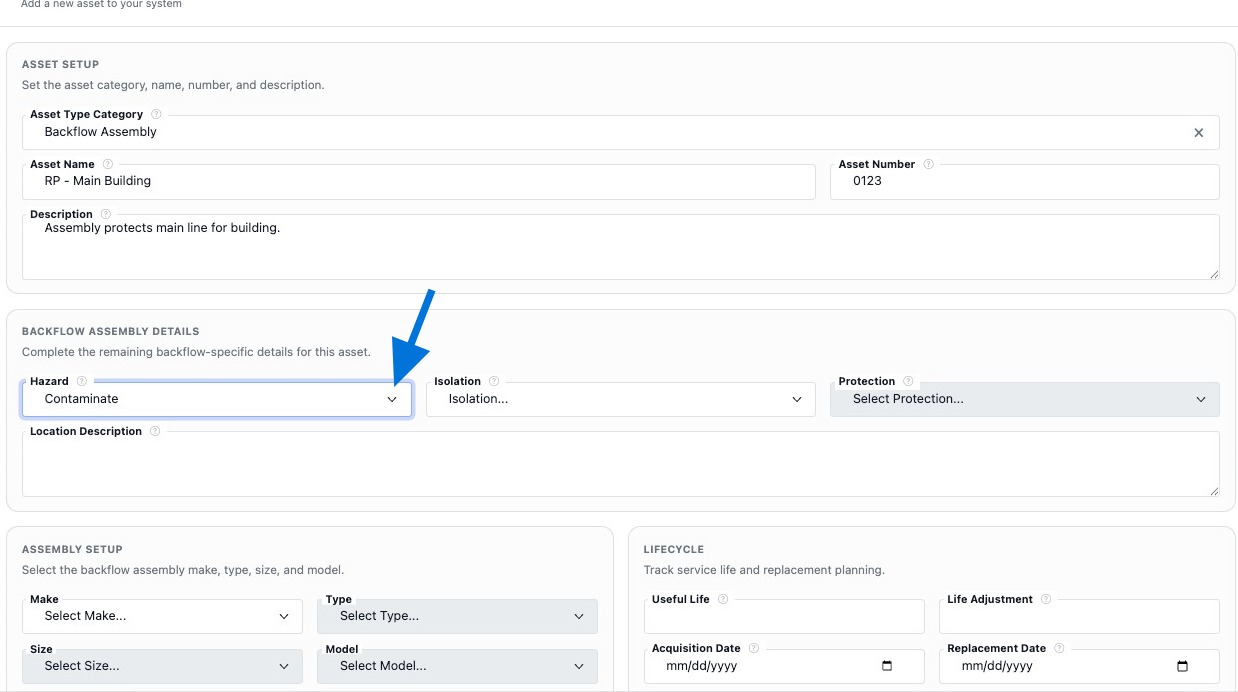
Select the Hazard, Isolation, and Protection settings to define how the assembly is used and what it protects.

Select the Hazard classification
Select the Hazard classification.
Select the Isolation setting
Select the Isolation setting.
Select the Protection type
Select the Protection type.
06

Add the location description

Enter a Location Description so the assembly can be found more easily in the field.

Enter the Location Description
07

Enter the assembly specifications

Select the Make, Type, Size, and Model, then enter the Serial Number to identify the specific device.

Select the assembly Make
Select the assembly Make.
Select the assembly Type
Select the assembly Type.
Select the assembly Size
Select the assembly Size.
Select the assembly Model
Select the assembly Model.
Enter the Serial Number
Enter the Serial Number.
08

Add optional operational details

You can enter lifecycle, responsible party, and cost or unit information to support long-term tracking and planning.

Enter lifecycle information
Enter lifecycle information.
Use the responsible party field
Assign the responsible party if needed.
Enter cost and unit information
Enter cost and unit information.
09

Add supporting record details

You can link a vendor, upload files, capture coordinates, and store notes to make the assembly record more complete and useful.

Use the vendor field to search and select an existing contact
Search and link a vendor.
Upload files such as photos or PDFs
Upload photos, PDFs, or related files.
Enter the assembly Latitude and Longitude
Enter latitude and longitude if needed.
Enter Notes for the assembly record
Store additional notes or setup details.
10

Save and open the assembly record

Click Add Asset to save the assembly, then open the newly created record from the Assemblies list to review the saved details and continue building the record.

Click Add Asset to save the assembly
Save the assembly record.
Click the newly created assembly record to open it from the Assemblies list
Open the saved assembly from the list.
Open the Assembly Record to review the saved details
Review the record and continue building it.

Add a Tester and Link a Gauge

Create the tester record, enter certification details, and link the tester’s gauge during setup so both records stay connected for testing and reporting.

01

Open the Cross Connection module

Open the Cross Connection module from the left navigation.

Open the Cross Connection module from the left navigation
02

Open Testers and start a new tester record

Go to the Testers tab, then click Add Tester to create a new tester record.

Navigate to the Testers tab
Open the Testers tab.
Click Add Tester to create a new tester record
Start a new tester record.
03

Enter the tester’s basic information

Enter the tester’s First Name, Last Name, and Email so the record can be clearly identified and used during testing workflows.

Enter the tester first name
Enter the tester’s first name.
Enter the tester last name
Enter the tester’s last name.
Enter the tester email address
Enter the tester’s email address.
04

Enter certification details

Enter the Certification Number, select the Certification Type, and set the Certification Expiration date so the tester’s qualifications are stored with the record.

Enter the tester certification number
Enter the certification number.
Select the tester certification type
Select the certification type.
Set the certification expiration date
Set the certification expiration date.
05

Upload supporting certification documents

Upload the tester’s certification document and the gauge calibration certificate so supporting records are stored with the tester setup.

Upload the tester certification document
Upload the tester certification document.
Upload the gauge calibration certificate
Upload the gauge calibration certificate.
06

Enter the linked gauge details

Enter the gauge information that will be tied to the tester record, including the Gauge Name, Make, Model, and Serial Number.

Enter a name for the gauge
Enter the gauge name.
Enter the gauge manufacturer
Enter the gauge manufacturer.
Enter the gauge model
Enter the gauge model.
Enter the gauge serial number
Enter the gauge serial number.
07

Set the calibration date

Set the Calibration Date to record when the gauge was last serviced and validated.

Set the gauge calibration date
08

Save and verify the tester and gauge

Click Add Tester to save the tester and linked gauge, then open the newly created tester record and verify the saved details.

Click Add Tester to save the tester and link the gauge information
Save the tester and linked gauge.
Open the newly created tester record
Open the newly created tester record.
Verify the tester and gauge details
Verify the tester and gauge details.

Gauge Setup Notes

In this workflow, the gauge is created and linked directly while adding the tester, so both records stay connected from the start.
Recommended Flow

Add the gauge while creating the tester so you do not have to go back and connect the equipment record later.

What to Include

Enter the gauge name, make, model, serial number, calibration date, and upload the calibration certificate when available.

Why It Matters

Keeping gauge information tied to the tester supports better audit trails, cleaner test entry, and stronger documentation for reporting.

Terms | Privacy
Proudly Built, Hosted & Operated in the USA
© 2026 R2 Utility. All rights reserved. 
Terms | Privacy
Proudly Built, Hosted & Operated in the USA
© 2026 R2 Utility. All rights reserved.