How to Add Locations
Add locations with consistent identifiers (Address, PLSS, or GPS) so tasks, assets, notices, and reporting stay accurate.
Before You Start
A Location is a record for a real-world site. R2 recommends entering at least one identifier so the location is searchable and accurate: Address, PLSS, or GPS Coordinates. You can include multiple identifiers if your workflow needs it.
- Location Type – used for organization, filtering, and reporting.
- Location Name – the primary label users will search for.
- At least one identifier: Address, PLSS, or GPS Coordinates.
- If a service address is available, use Address as the primary identifier and add GPS Coordinates later if additional map precision is needed.
Quick Add Location
Quick Add Location provides a faster entry flow for creating a location when you need to get a record in the system quickly. You have the option to add identifiers like Address, PLSS, and GPS as needed.
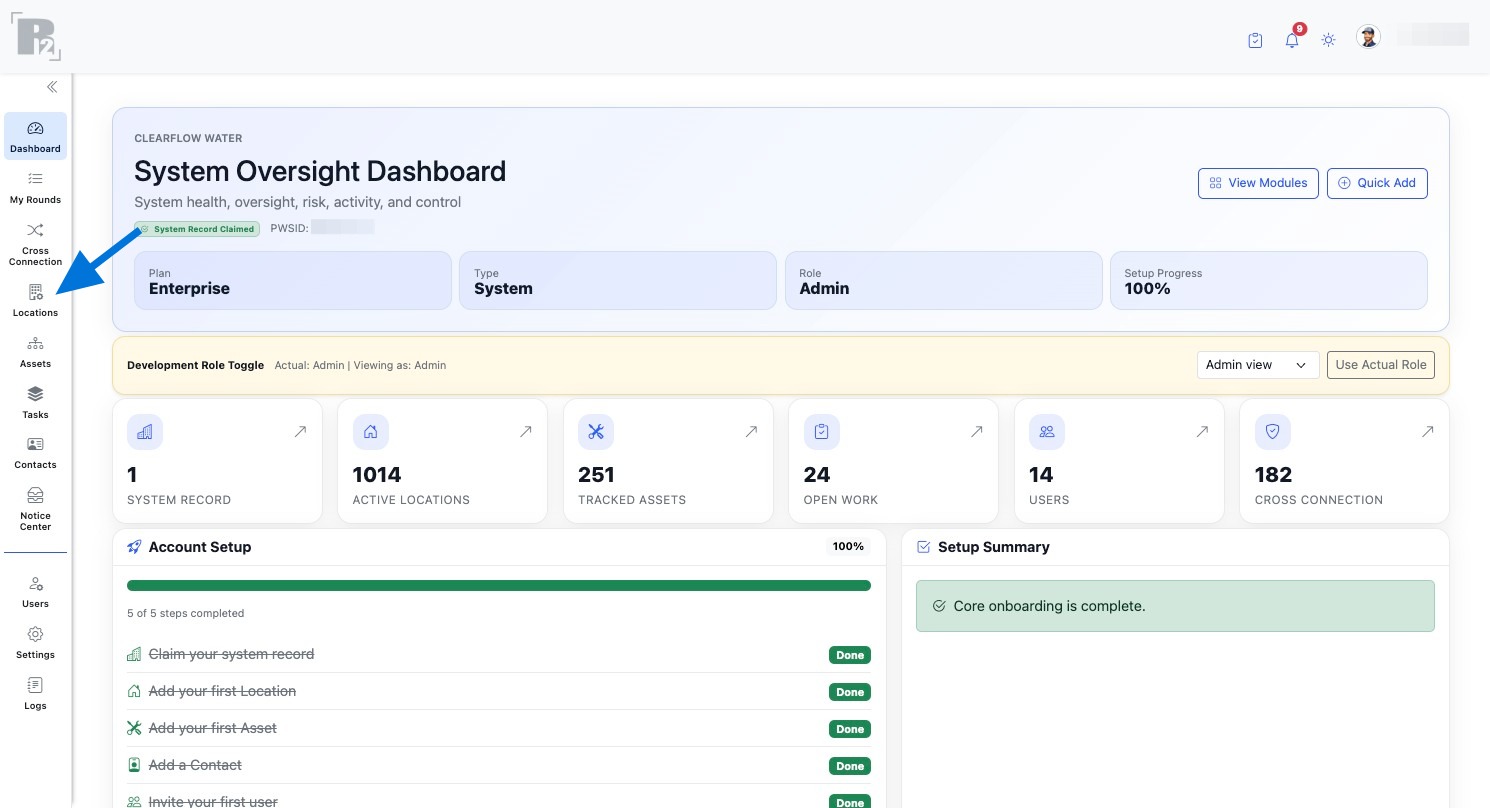
- Click Locations on the left side panel to open the Locations Dashboard.
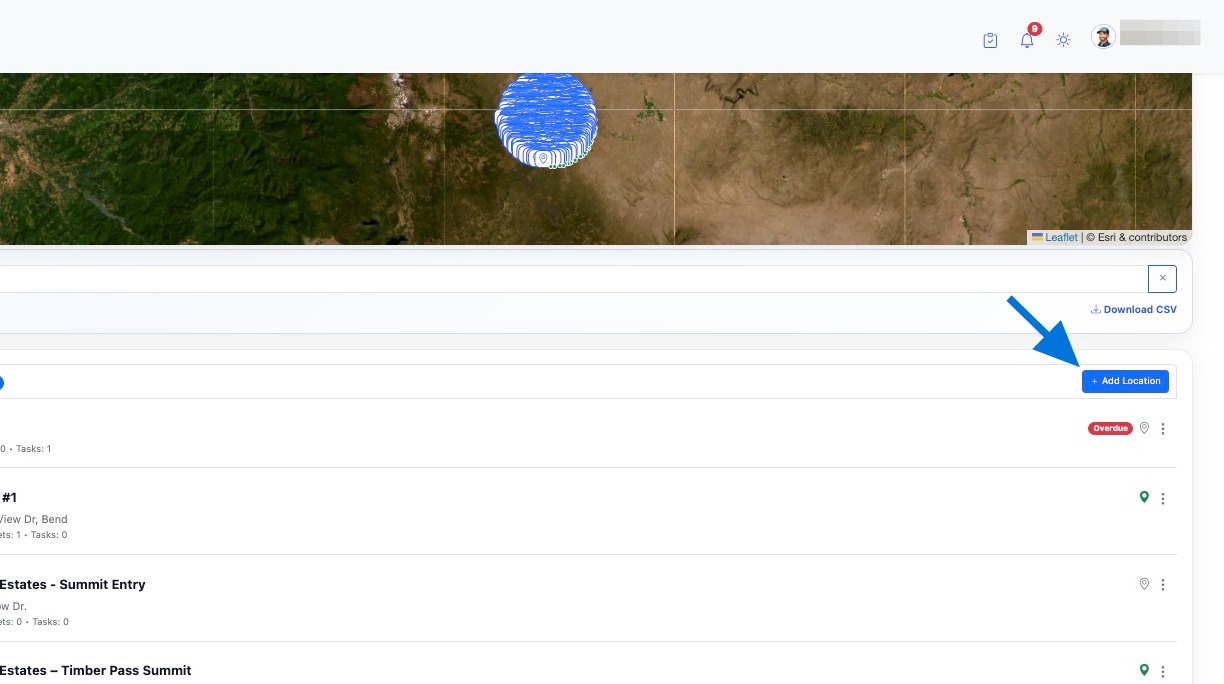
- On the Locations Dashboard, click Quick Add Location.
- Take Photo lets you attach a photo for the location while creating it (useful for site verification).
- Set Location can use your device’s current location to set GPS coordinates for the record.
- Select Location Type.
- Enter a clear Location Name.
- Choose your identifier method: Address, PLSS, or GPS.
- Enter the fields for the identifier you selected.
- Click Add Location to save.
- If you’re onsite, use Set Location to capture accurate GPS coordinates.
- In the Quick Add Location form, the only required field is Location Type.
Add Location
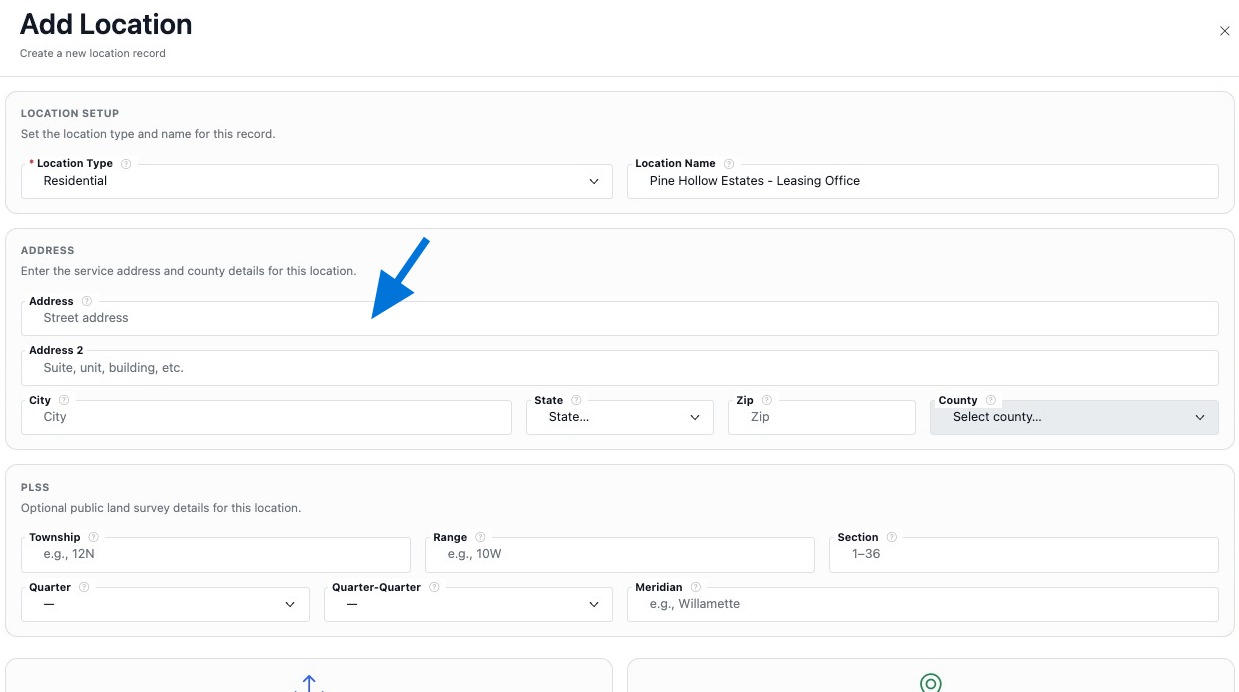
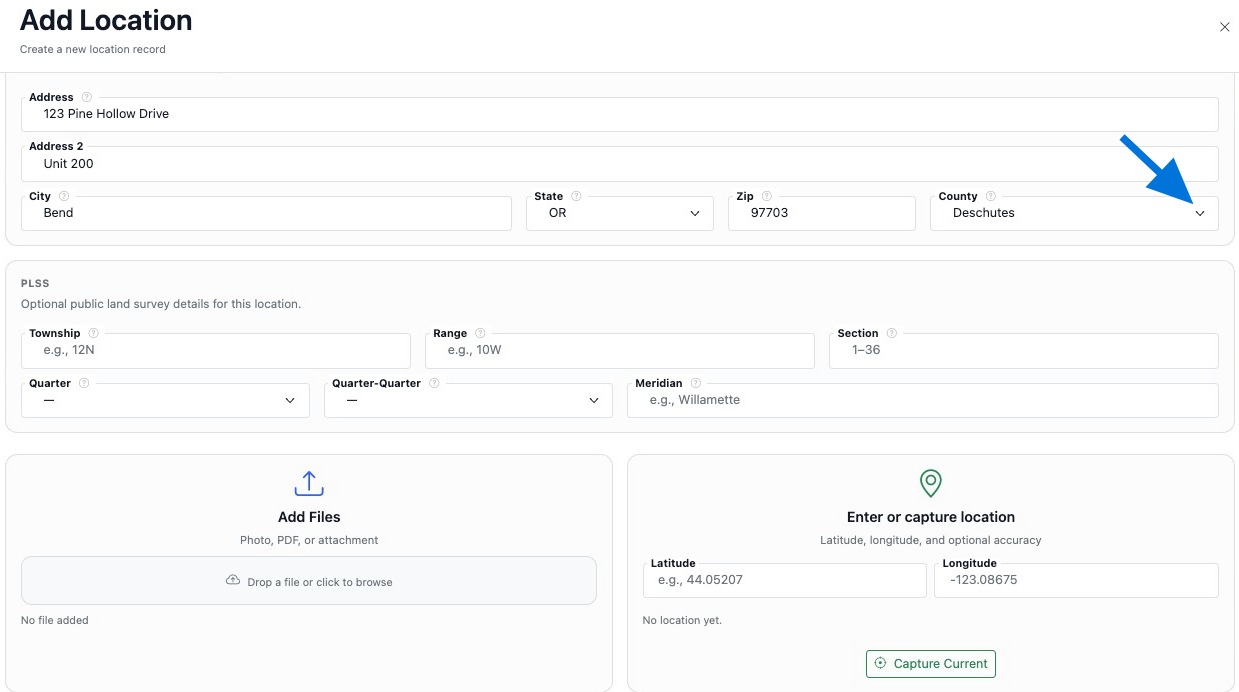
Use Add Location to create a new location record in your system. R2 recommends entering at least one identifier so the location is easy to find, verify, and keep accurate: Address, PLSS, or GPS Coordinates.
- Click Locations on the left side panel to open the Locations Dashboard.
- On the Locations Dashboard, click + Add Location.
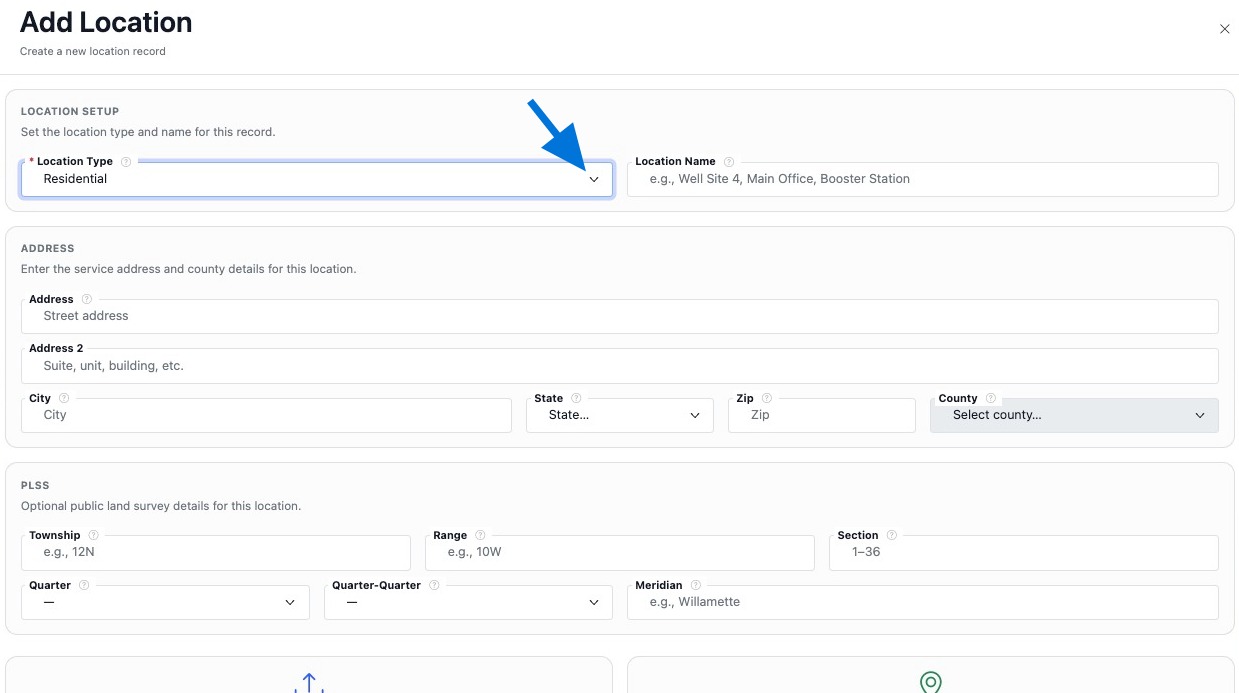
- Select Location Type.
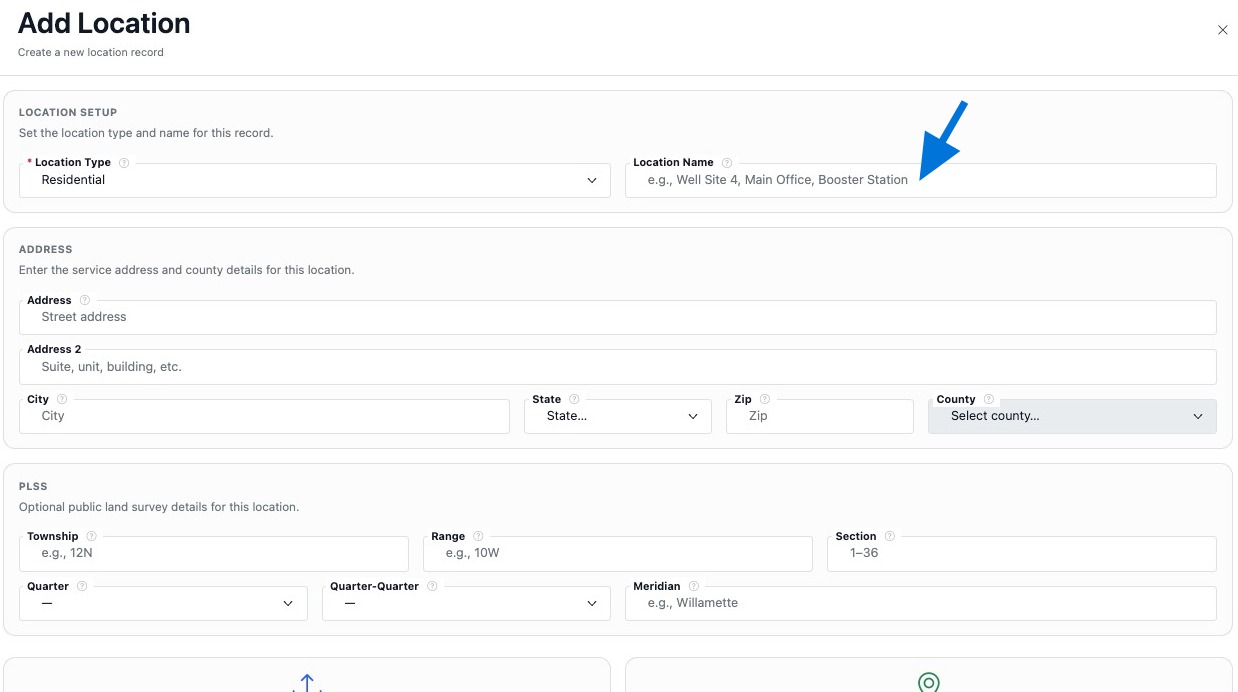
- Enter a clear Location Name.
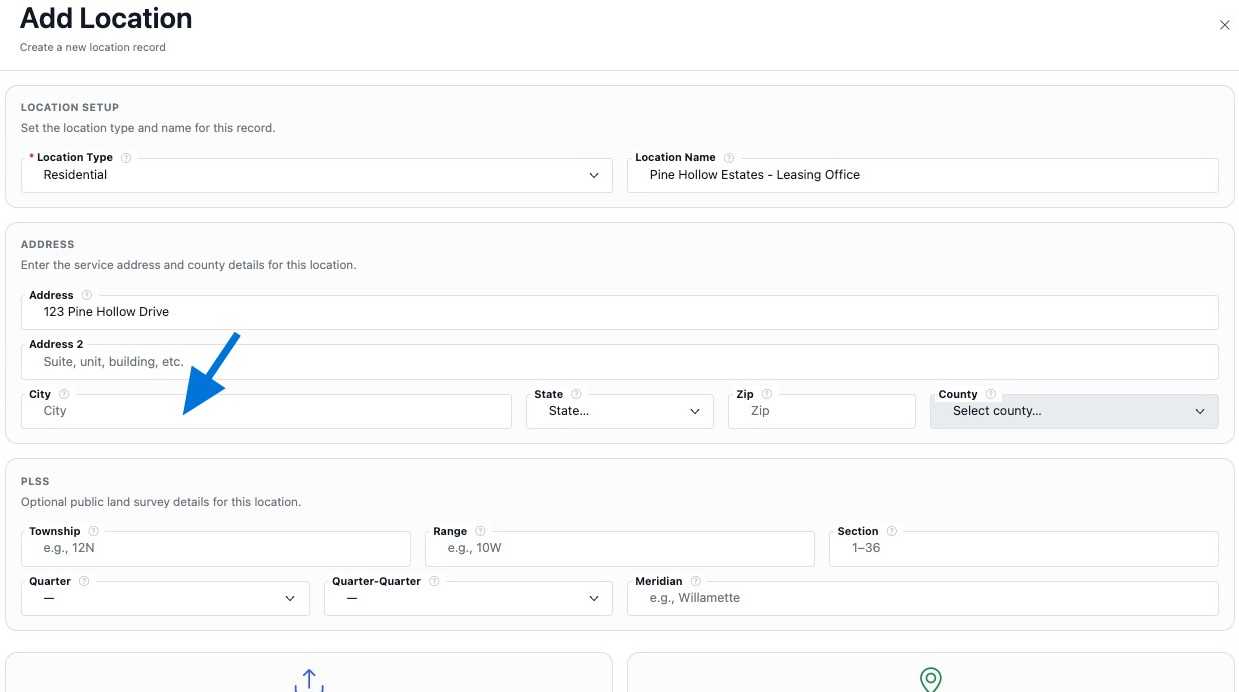
- Enter at least one identifier in Address, PLSS, or GPS Coordinates.
- Add a photo or file if you have supporting documentation.
- Click Add Location to save.
- Location Type sets how the record is categorized for filters and reporting.
- Location Name is the primary label your team will search for.
- Address is the main street address line.
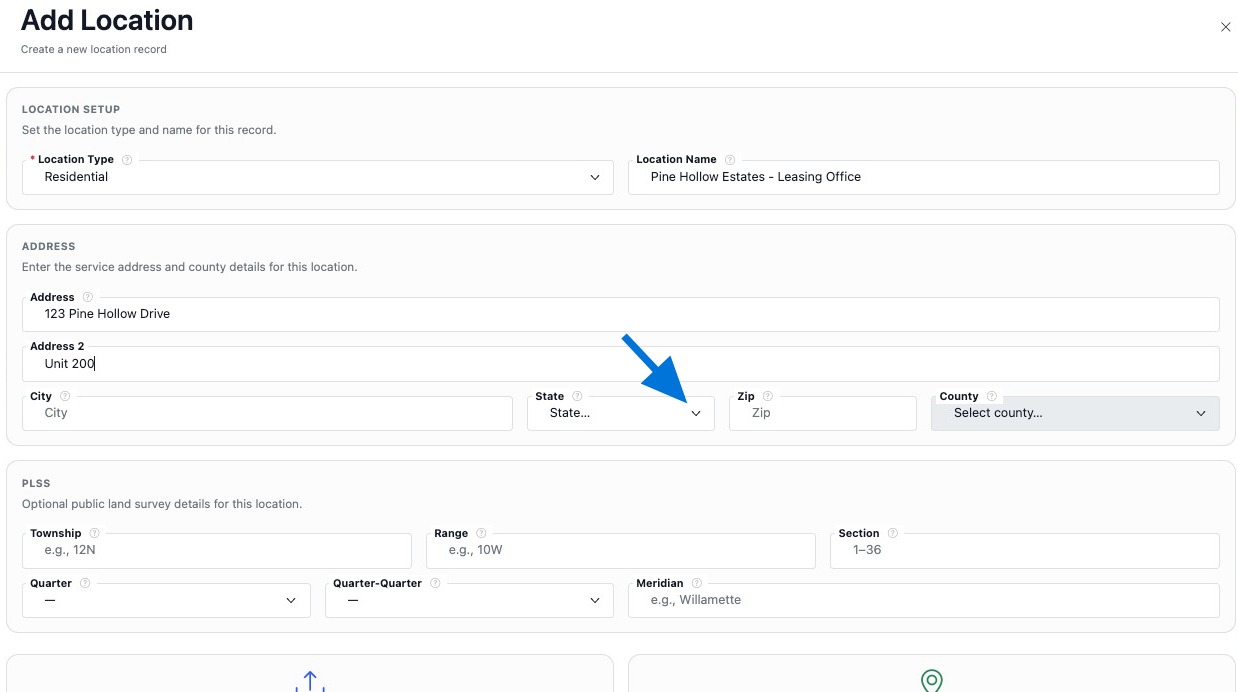
- Address 2 is for unit, suite, floor, building, or gate details.
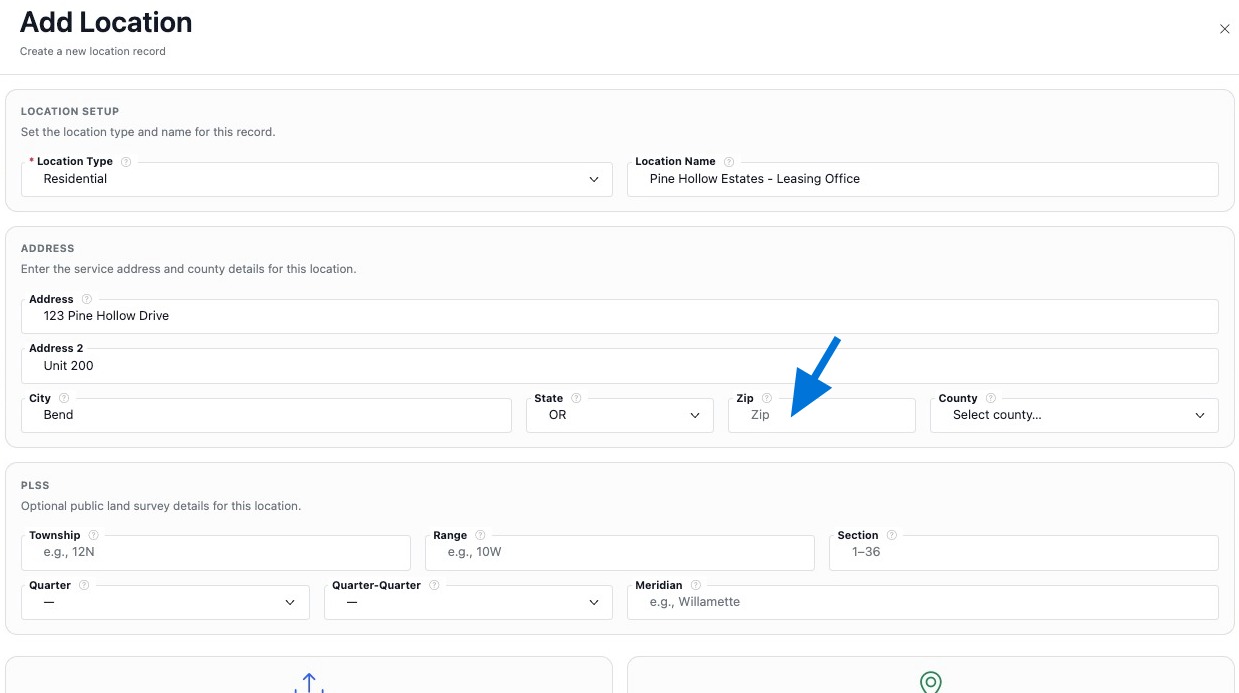
- City, State, County, and Zip Code complete the address record.
- Township and Range define the PLSS grid position.
- Section is a number from 1-36.
- Quarter and Quarter-Quarter add precision.
- Meridian identifies the meridian reference.
- Enter Latitude and Longitude in decimal degrees.
- Use Use Current Location to capture coordinates while onsite.
- Add photos, site documentation, maps, or supporting PDFs to the location record.
- If you have an address, use Address as your primary identifier.
- If you are onsite, use Use Current Location to capture GPS quickly.
- Use consistent naming so locations stay clean in search and reports.
Edit Location
You can edit a location any time to keep the record accurate. Use Edit Location to update the location’s type and name, adjust identifiers like Address, PLSS, or GPS Coordinates, and set the location’s status.
- Click Locations on the left side panel to open the Locations Dashboard.
- Find the location you want to update in the Locations List.
- Click the 3-dot menu on that location row.
- Select Edit Location.
- Update the fields you need.
- Click Save Changes.
- Update identifiers carefully so search results and reporting remain accurate.
- If you change the Location Type or Status, confirm it still matches your filters and workflows.
- Use Use Current Location when updating GPS Coordinates onsite for the best accuracy.
- After saving, review the Location Summary Page to confirm everything looks correct.
Build the Location Record
After you add a location, keep building the record so the Location Summary Page stays useful for your team. The more you link and document here, the easier it is to find the right site and keep tasks, assets, notices, and activity tied to the correct location.
- Confirm identifiers – verify Address, PLSS, and GPS Coordinates so the location is searchable and easy to match in the field.
- Add Notes – capture access instructions, shutoff guidance, site SOPs, and anything your team needs before arriving.
- Upload Files – store photos, site maps, manuals, and supporting documents that belong with the location.
- Link Assets – attach assemblies and other equipment at the site so service history stays organized.
- Create Tasks – build work orders, inspections, and recurring work tied to this location.
- Add Notices – add compliance letters or reminders when notices are required.
- Review Activity – check recent task activity at the location to confirm what changed and when.
- Location Summary Cards are useful for quick record snapshots and fast navigation.
- Searching and filtering works better when identifiers and details are consistent.
- Maintenance tracking is cleaner when tasks, assets, files, and notices are linked to the correct location.
- Sharing is more useful when the record has the right details, notes, and supporting files.
- Use a consistent naming format so lists stay clean and easy to scan.
- If a location is created quickly in the field, come back later to add notes and files and link the right assets.
- Add at least one photo for hard-to-find sites like meter rooms, vaults, risers, and pump stations.
- Keep one strong identifier updated so the location is easy to verify when assigning work or creating notices.