Skip to content
Learning Center How-To Guides Add Tasks

How to Add Tasks

Create a task, link it to the correct location and asset, then continue building the record with assignment, files, GPS details, and scheduling information.

Before You Start

Understand what the task record is used for and what information you may want ready before you begin.

What a Task Is

A Task is the record used to track work, inspections, service activity, and follow-up items tied to your locations and assets.

What You May Need

You may want the task name, task type, priority, due date, assigned user, linked location, linked asset, files, GPS details, and scheduling information ready before you begin.

Recommended Flow

Select the location first, then choose the asset if applicable, so the task stays connected to the correct records from the start.

Add Task

Create the task record and connect it to the correct location, asset, and supporting details.
01

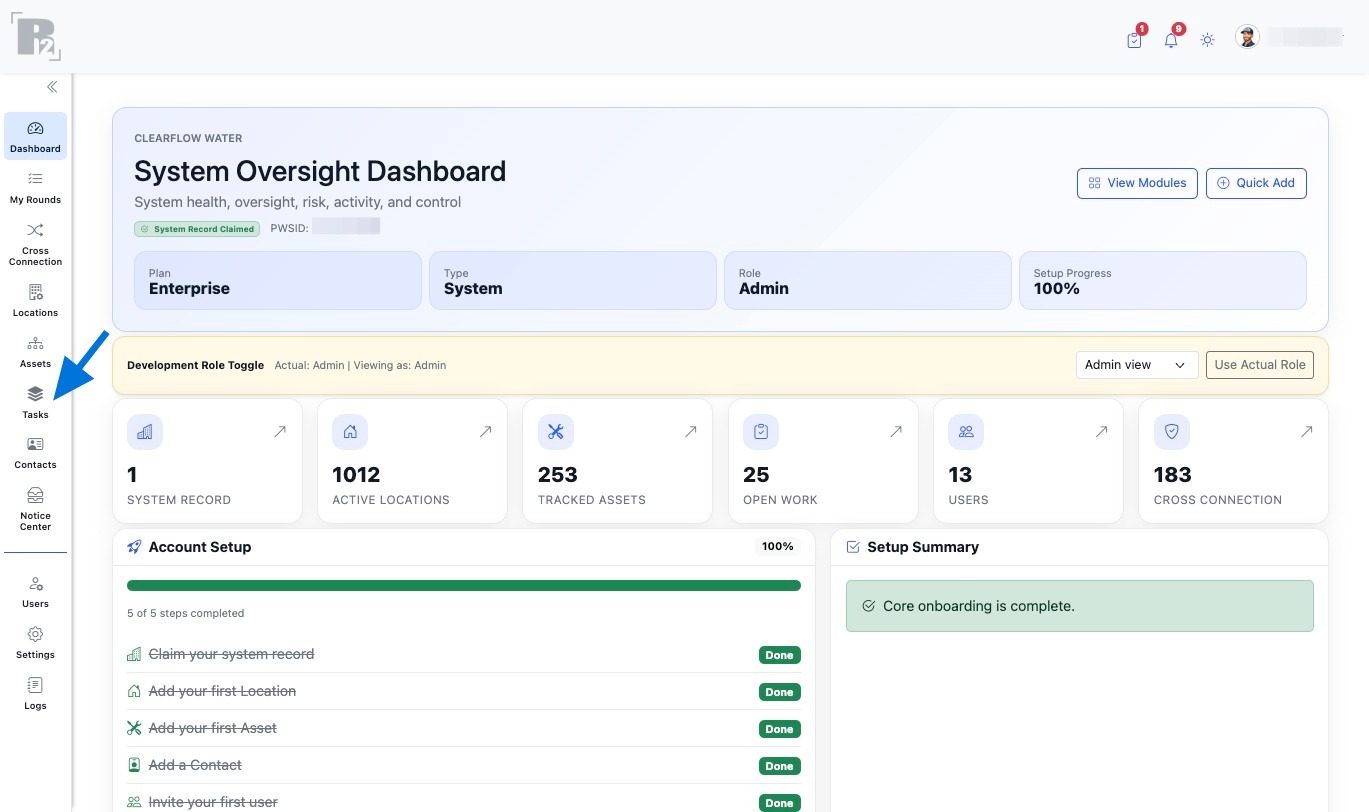
Open the Tasks page

Open the Tasks page from the left sidebar navigation.

Open the Tasks page from the left sidebar navigation
02

Start a new task record

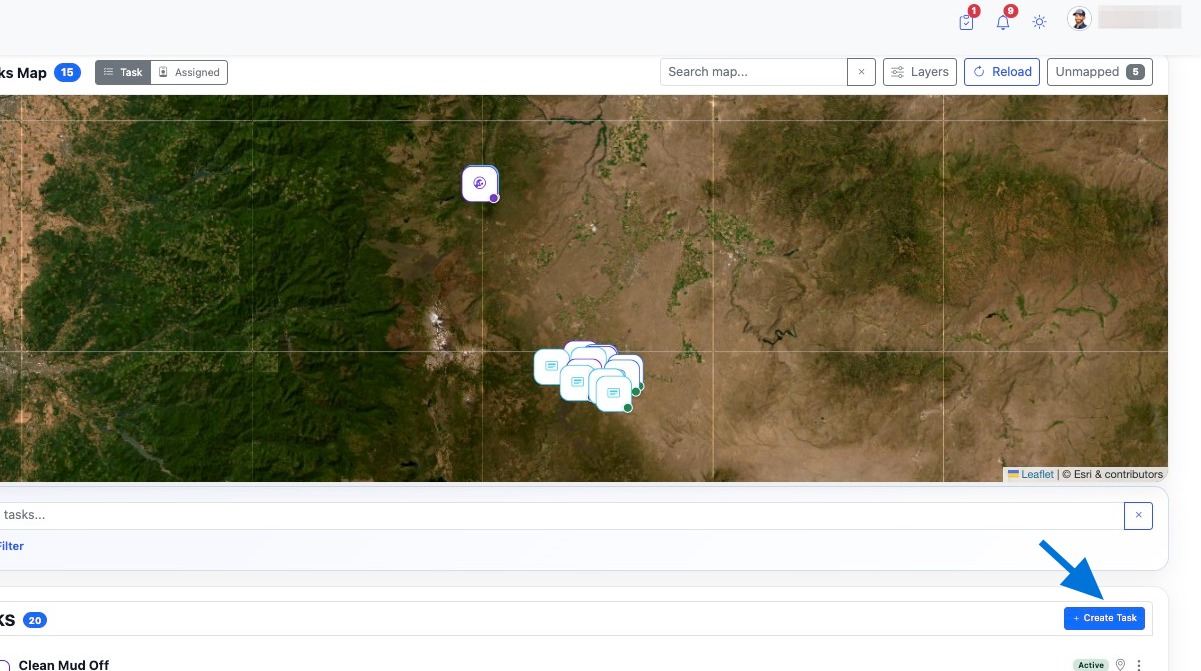
Click Create Task to start a new task record.

Click Create Task to start a new task record
03

Select the location

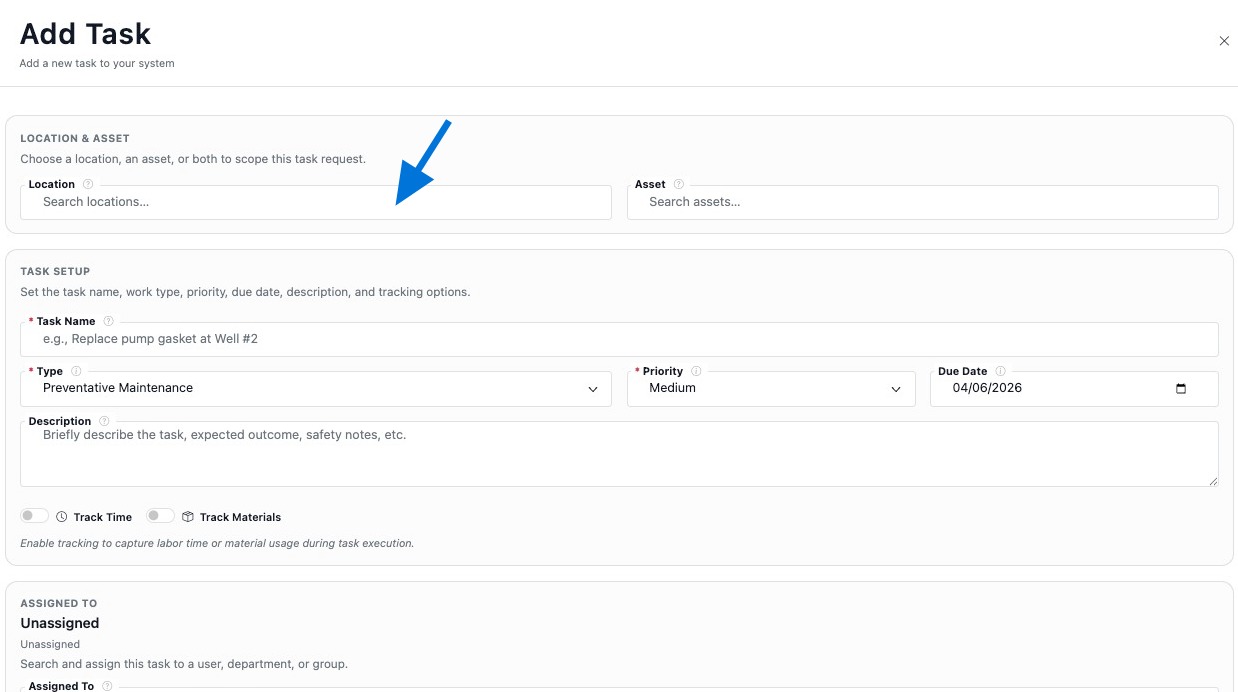
Select the location where this task will be performed. This links the task to that location and determines which assets are available.

Select the location where this task will be performed
04

Select the asset

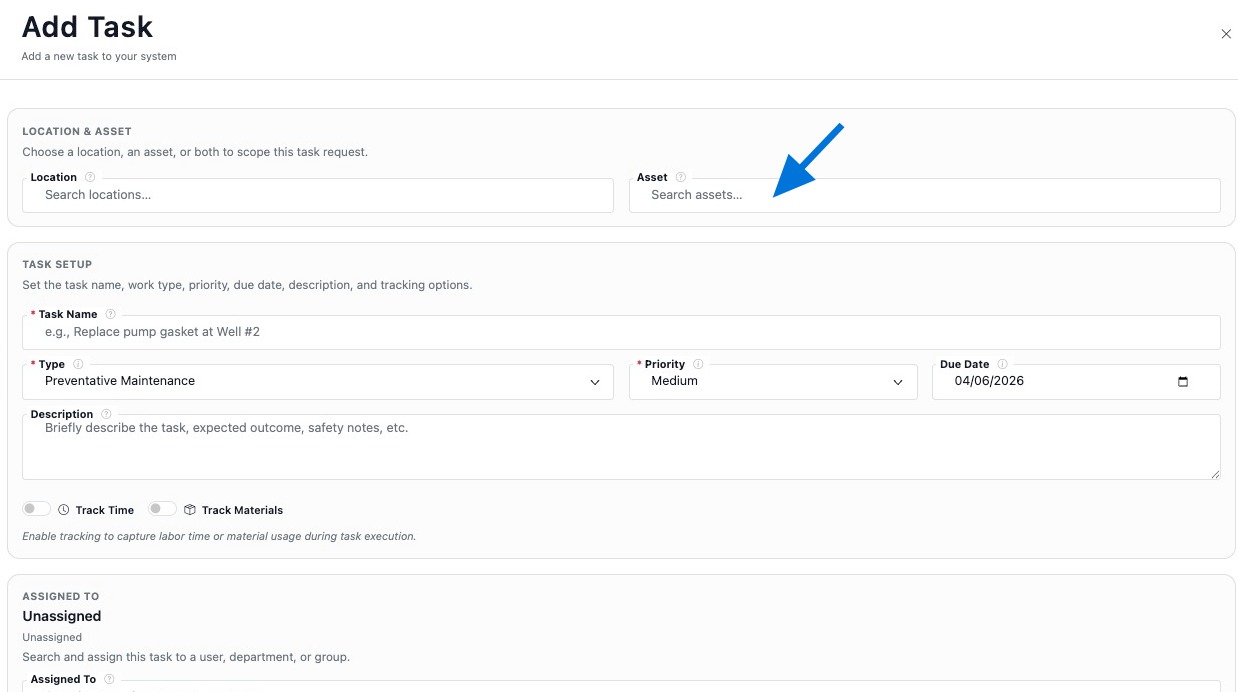
Select the asset associated with this task. Only assets within the selected location will be available, linking the task to both the location and the asset.

Select the asset associated with this task
05

Enter the task name

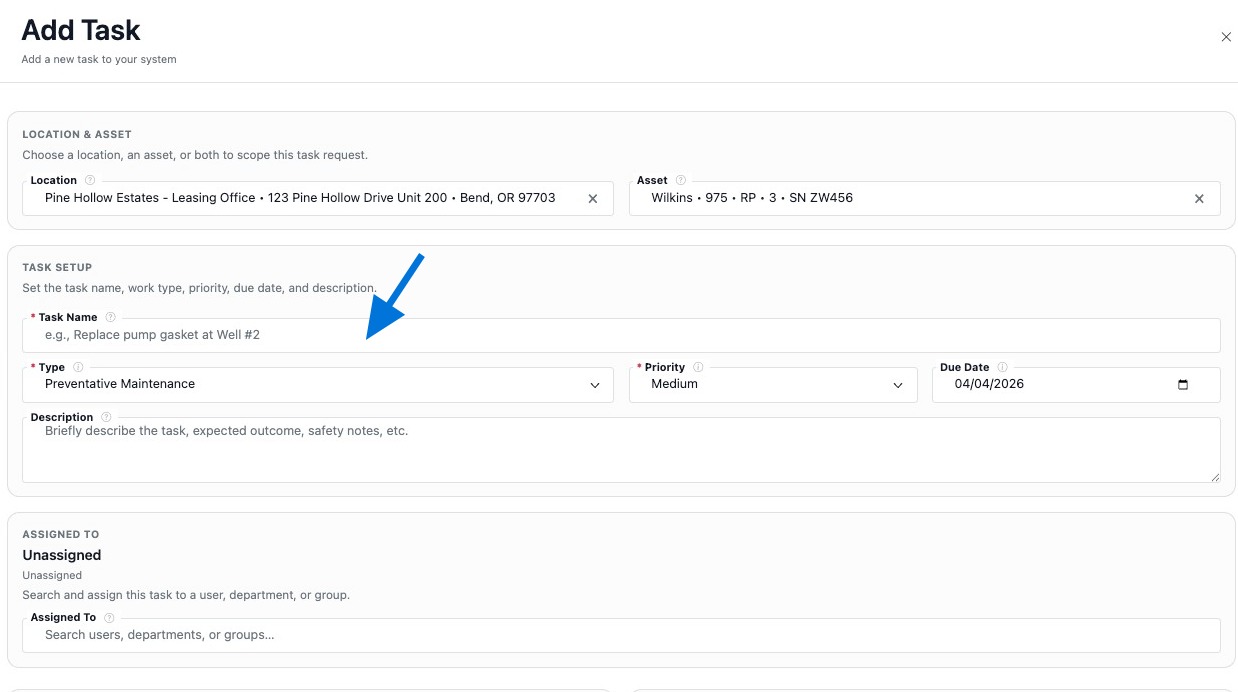
Enter a task name to clearly identify the work being performed.

Enter a task name to clearly identify the work being performed
06

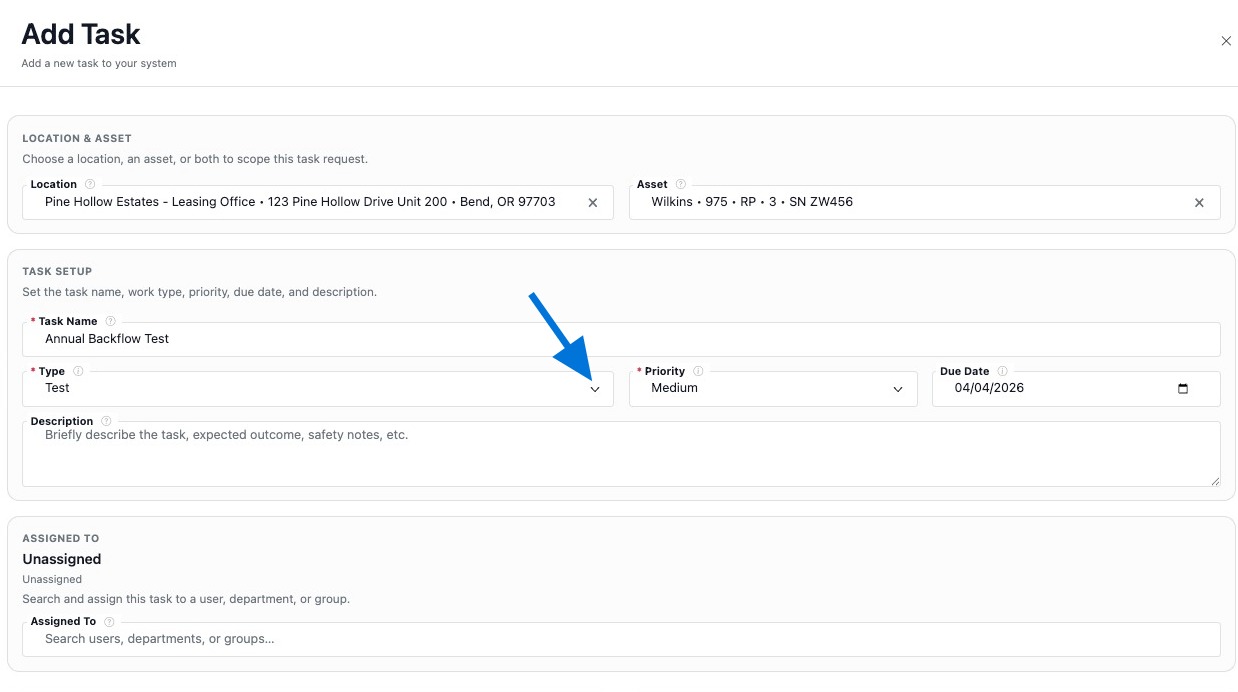
Choose the task type

Choose a task type to categorize the task.

Choose a task type to categorize the task
07

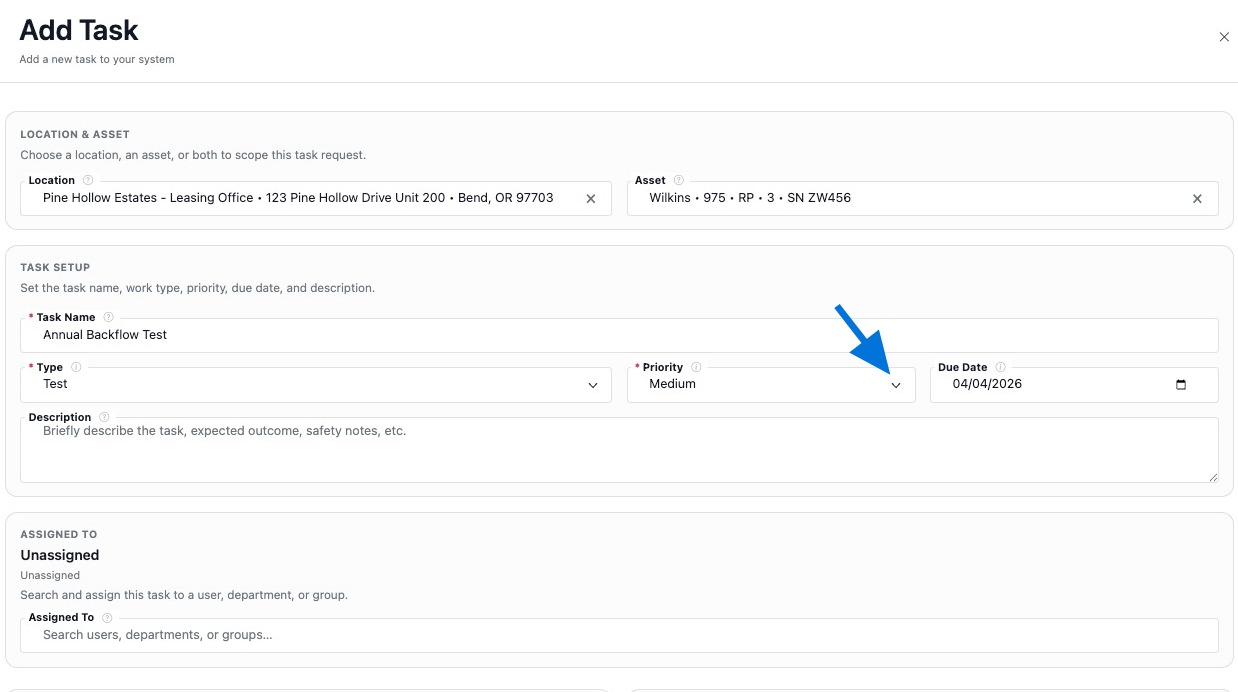
Set the priority

Select the priority to define how urgent or important this task is.

Select the priority to define how urgent or important this task is
08

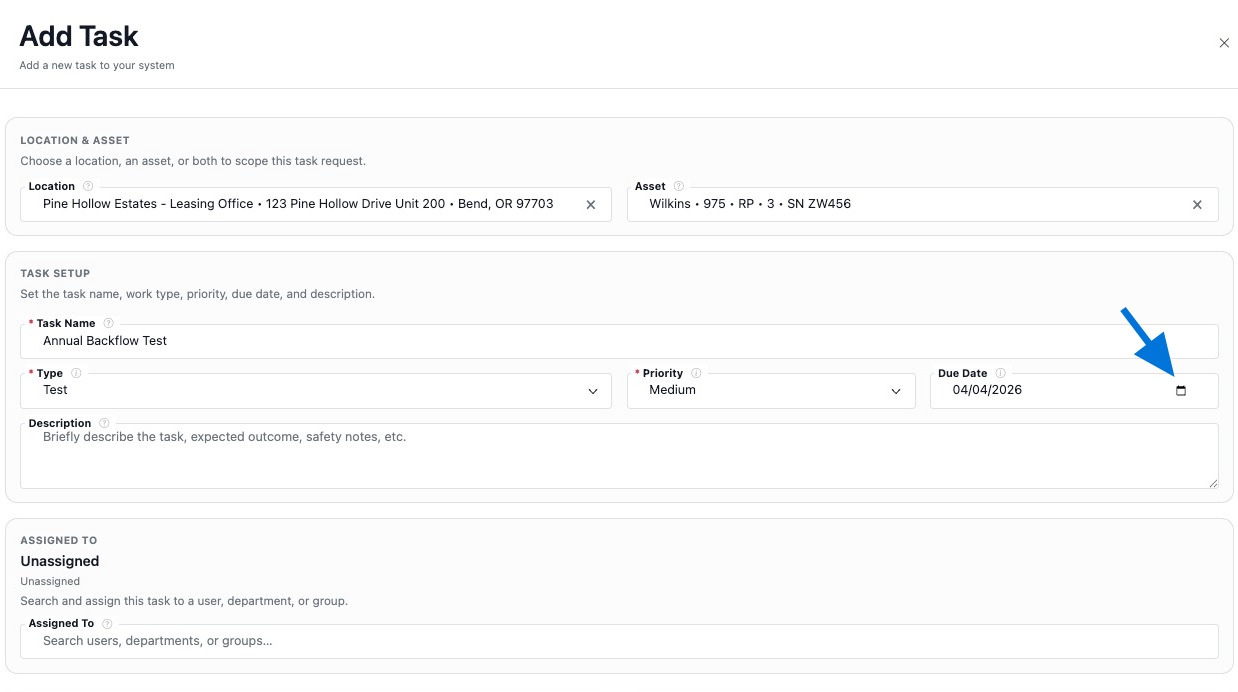
Set the due date

Set a due date to establish when the task should be completed.

Set a due date to establish when the task should be completed
09

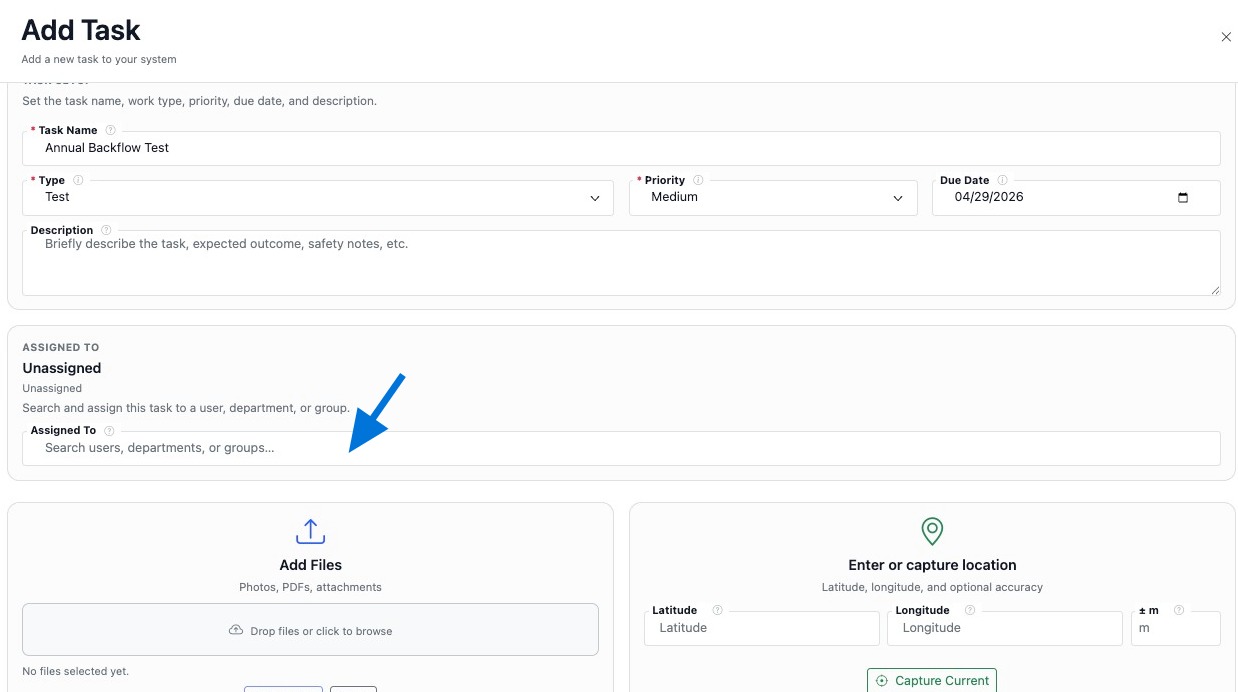
Assign the task

Use the Assigned To field to assign the task to a user in your system.

Use the Assigned To field to assign the task to a user in your system
10

Upload related files

Upload any files or documentation related to the task.

Upload any files or documentation related to the task
11

Add GPS coordinates if needed

Enter latitude and longitude to define the task’s precise GPS location.

Enter latitude and longitude to define the task’s precise GPS location
12

Configure scheduling if needed

Configure scheduling if the task should repeat on a consistent interval.

Configure scheduling if the task should repeat on a consistent interval
13

Save the task

Click Add Task to save and create the task record.

Click Add Task to save and create the task record
14

Open the new task record

Open the newly created task to access its full record.

Open the newly created task to access its full record
15

Review the task details

Review the task details and verify that all information is accurate.

Review the task details and verify that all information is accurate

Build the Task Record

Once the task exists, continue building it so the record stays useful, complete, and connected.

Keep It Connected

Add the correct location, asset, assignment, files, and scheduling details so the task stays tied to the right records.

Keep It Clear

Use clear task names, task types, priorities, and due dates so the work is easy to understand and manage.

Review the Record

After saving, review the task record to confirm the linked records, attachments, and task details appear as expected.

Terms | Privacy
Proudly Built, Hosted & Operated in the USA
© 2026 R2 Utility. All rights reserved. 
Terms | Privacy
Proudly Built, Hosted & Operated in the USA
© 2026 R2 Utility. All rights reserved.