Skip to content
Learning Center How-To Guides Add Users

How to Add Users

Create user accounts with roles so your team can access R2, receive assignments, and manage work with clear permissions.

Before You Start

Users are the people on your team who can access your R2 system. Each user is assigned a Role to control permissions and help keep responsibilities clear.


What You’ll Need
  • First Name and Last Name
  • Email (used for identification and communication)
  • Role (User / Manager / Admin)
Helpful Tip
  • Assign the least-privileged role needed (you can update roles later).

Add User

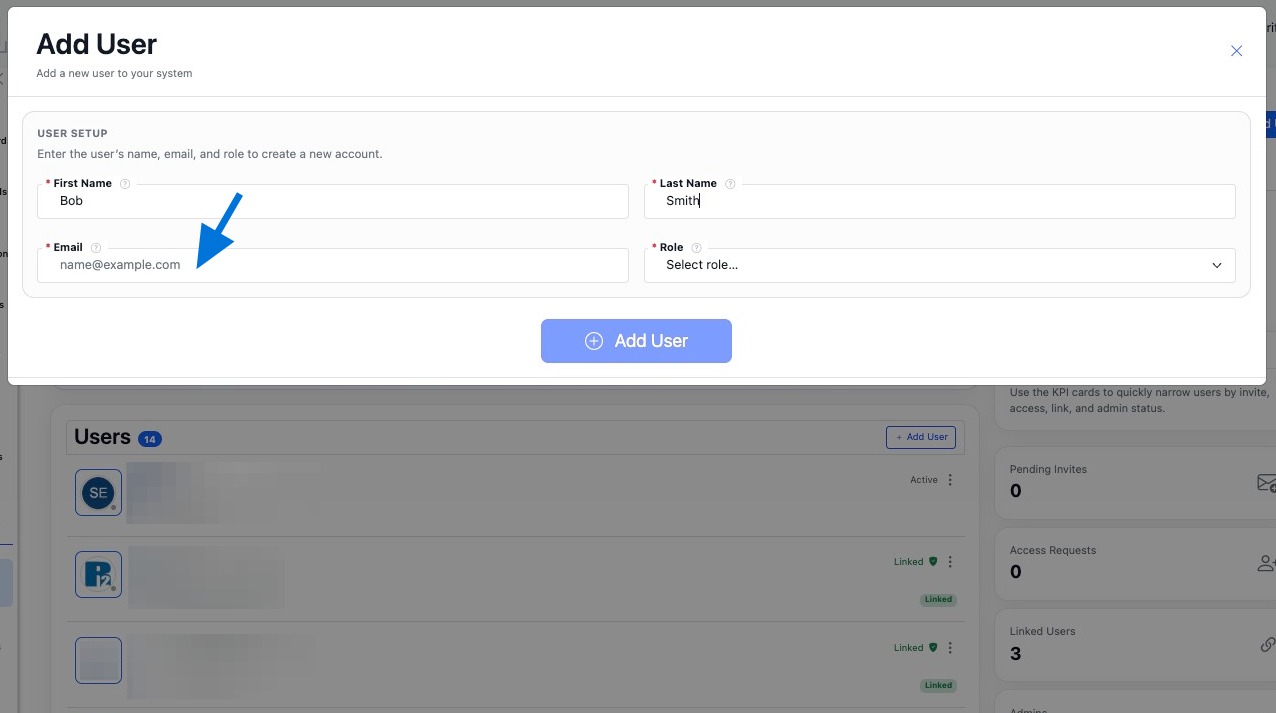
Use Add User to create a new account and assign a role so the user can access the system.


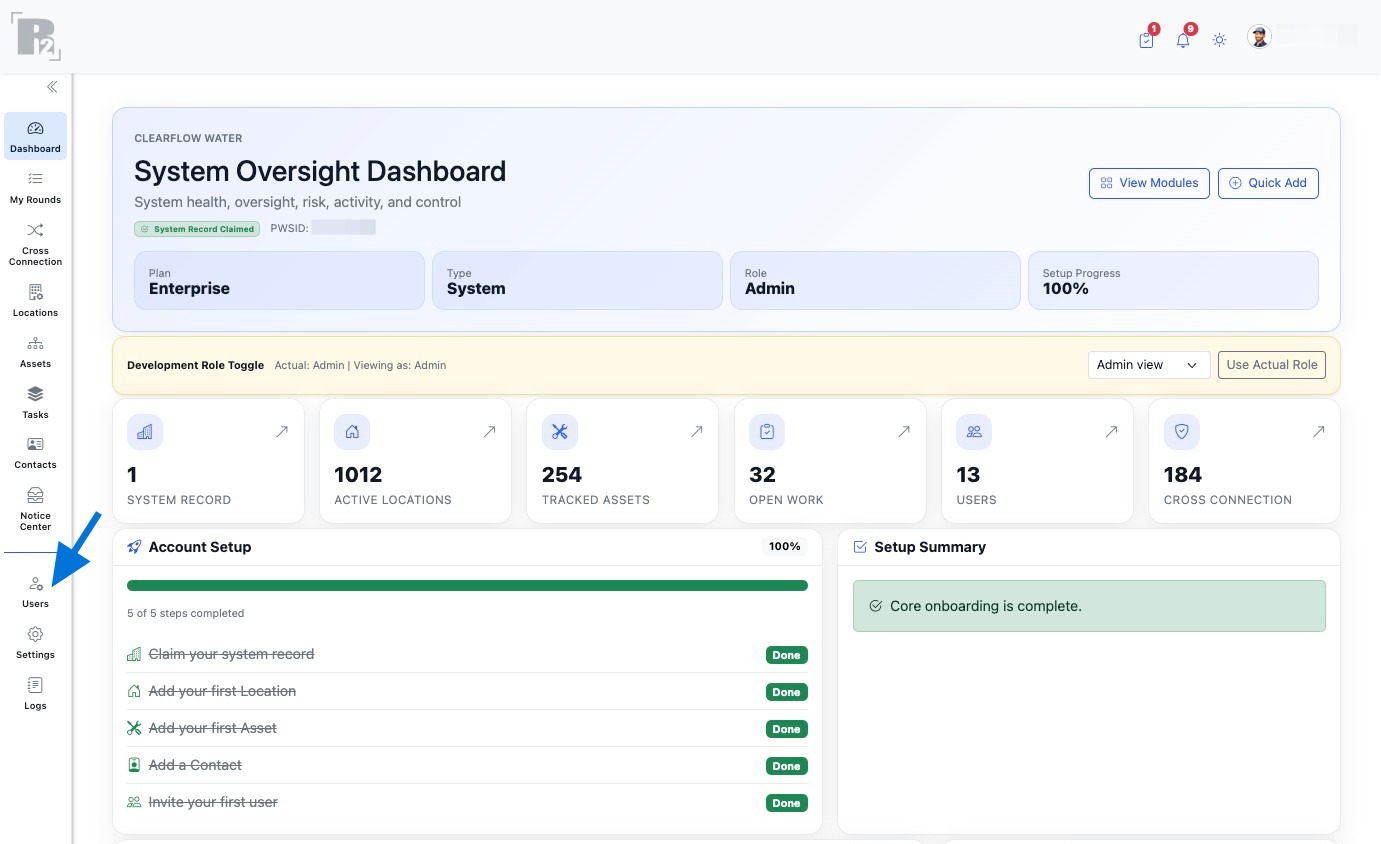
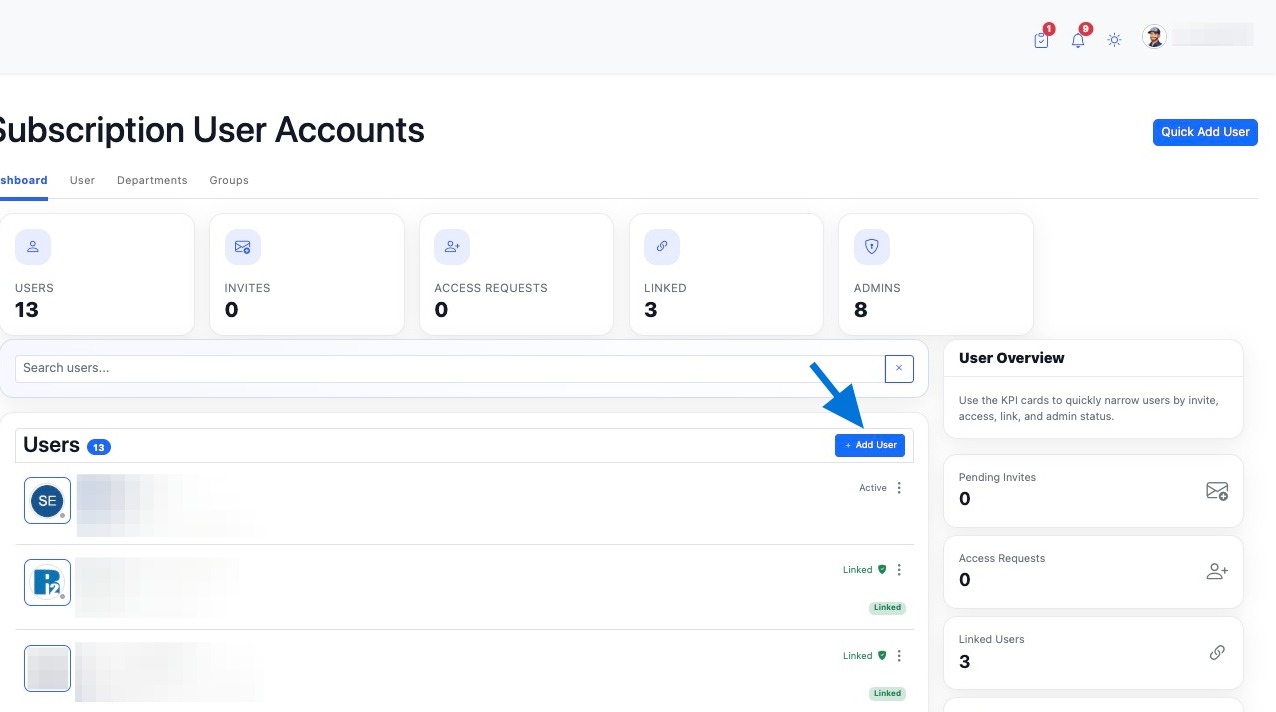
How to Open Add User
  1. Go to Users from the left side panel.
  2. Click Add User.
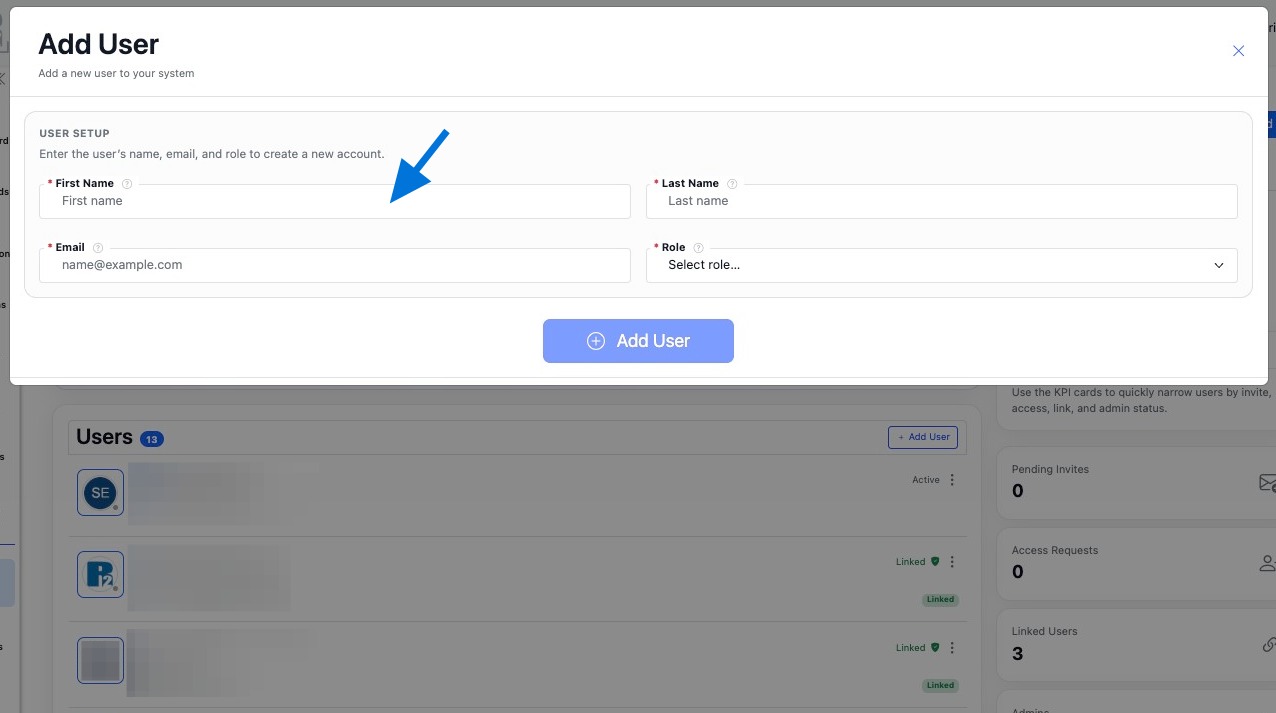
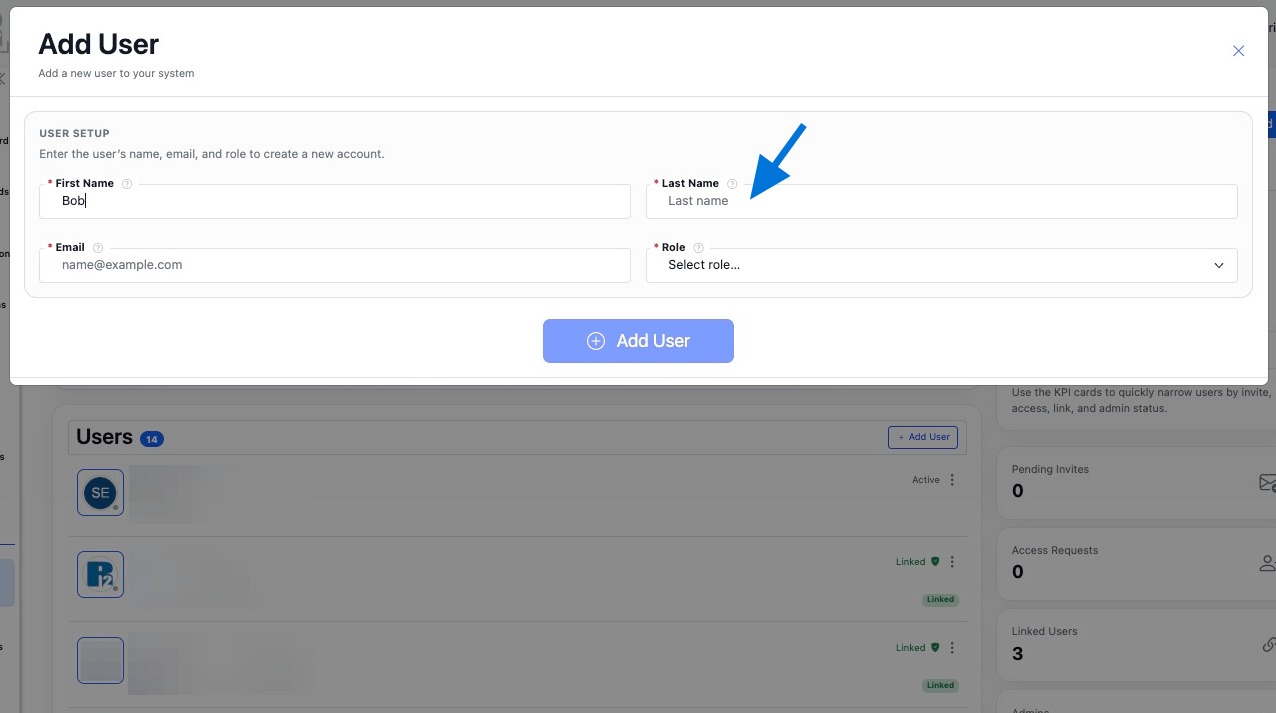
Fill Order
  1. Enter First Name.
  2. Enter Last Name.
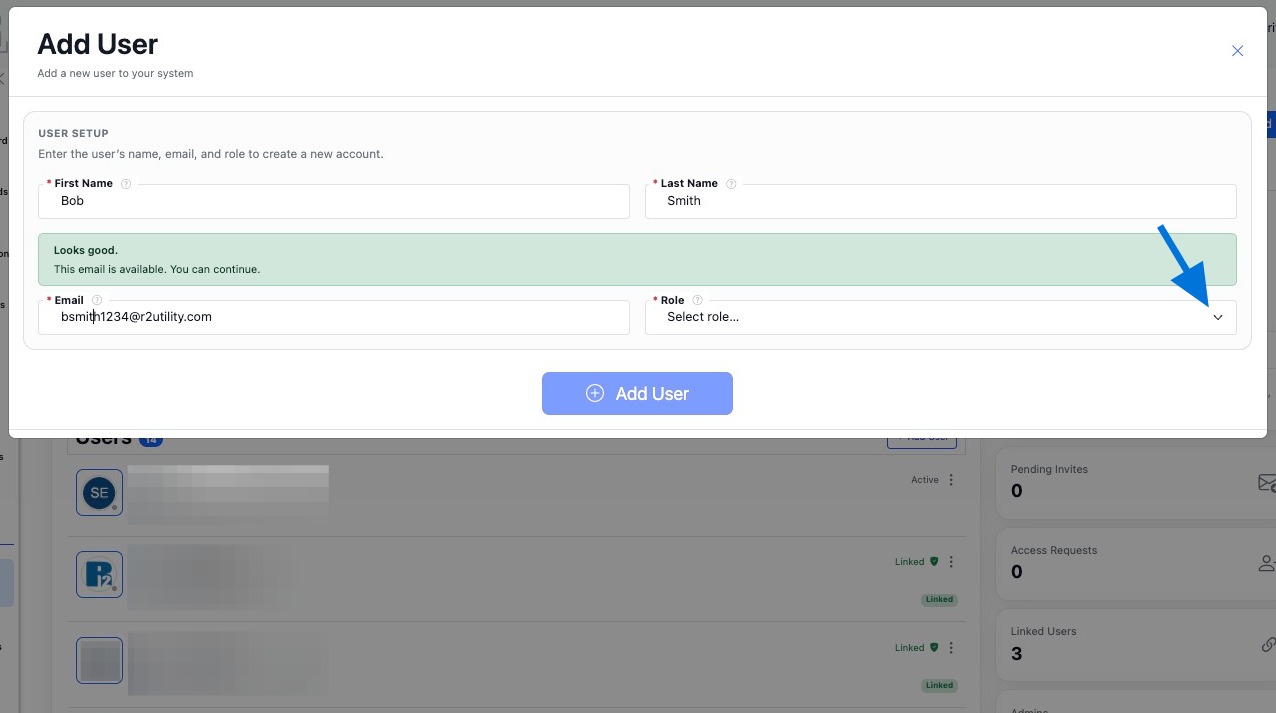
  3. Enter Email.
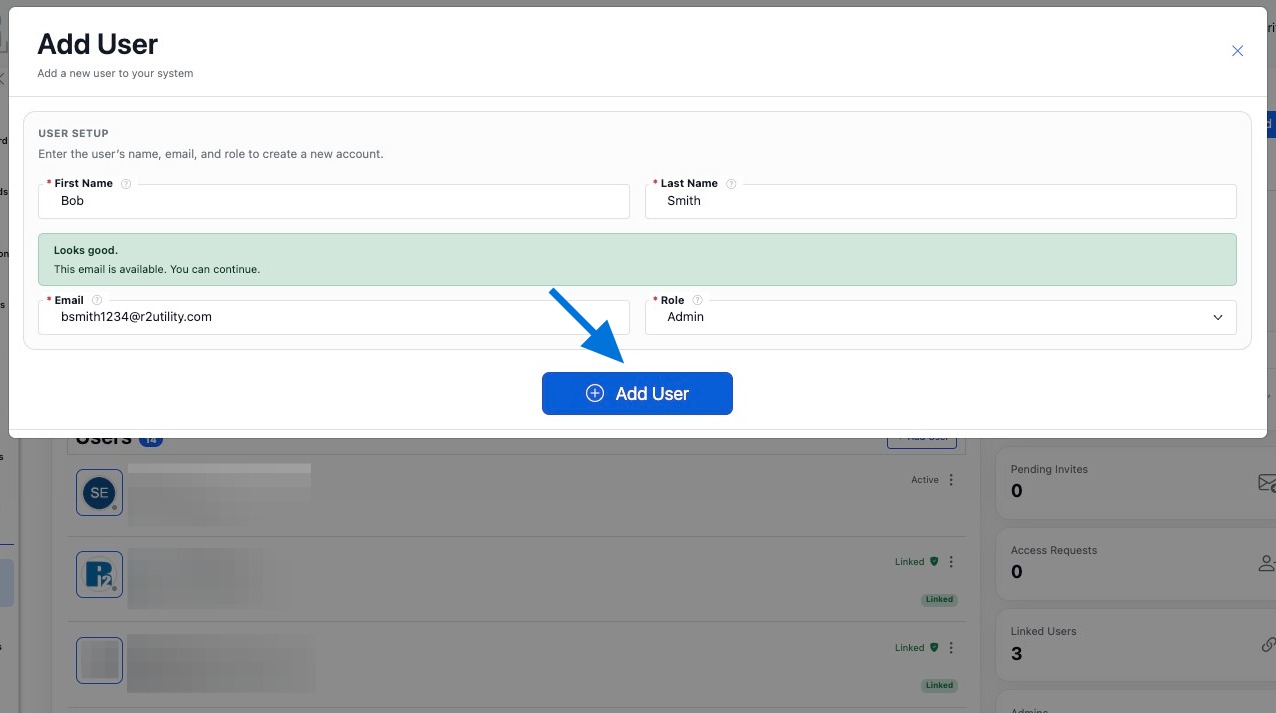
  4. Select a Role (User / Manager / Admin).
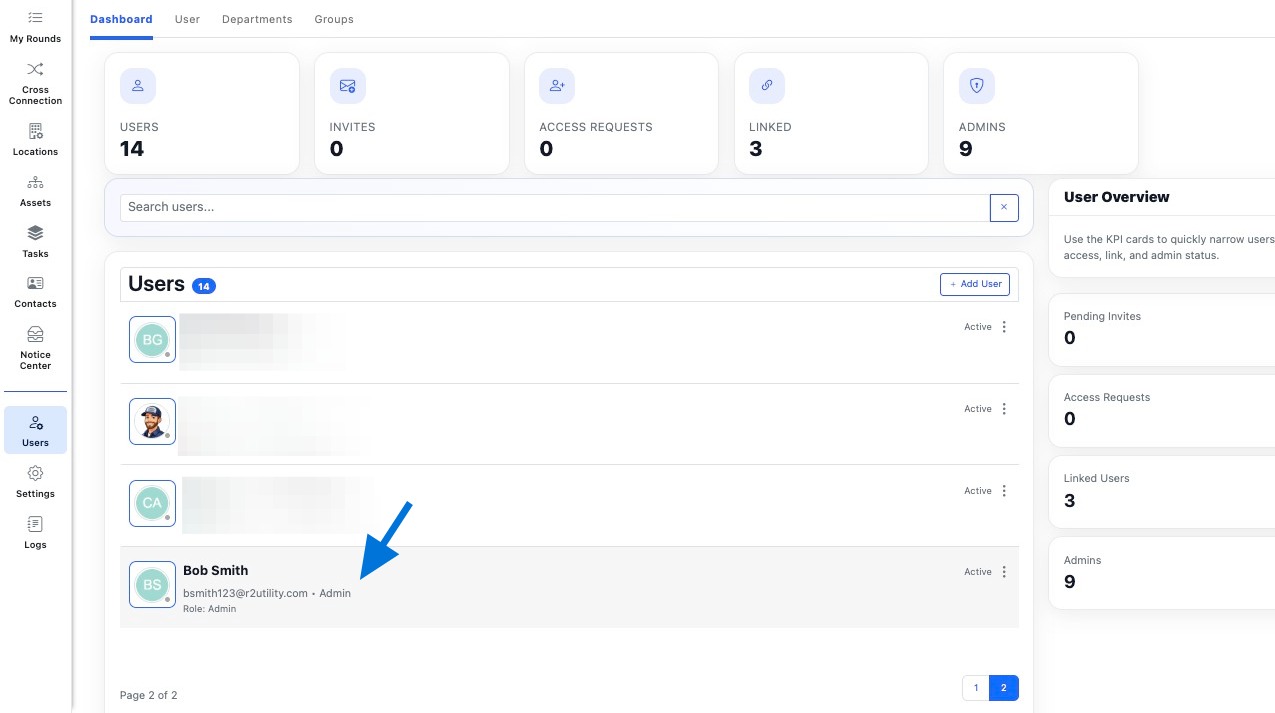
  5. Click Add User to save.

Edit User

You can edit a user any time to update their name, role, status, and contact details. Edits are accessed from the user row 3-dot menu.


How to Edit a User
  1. Open the Users list.
  2. Find the user row you want to update.
  3. Click the row 3-dot menu.
  4. Select Edit.
  5. Update the fields you need.
  6. Click Update User.
Common Fields You Can Edit
  • First Name, Last Name
  • Email (may be locked depending on your system rules)
  • Phone (optional)
  • Status (Active / Inactive)
  • Role (User / Manager / Admin)
  • Avatar (if enabled)

Roles & Status

Roles determine what actions a user can perform within R2, while Status controls whether the user can actively access the system and receive assignments.


User Roles

User roles control permission levels within the system. Higher roles have broader access to manage records and system activity.

  • Admin – Highest permission level. Admins can add, edit, and delete records across the system and manage user access.
  • Manager – Second highest permission level. Managers can add and edit records and help coordinate operational workflows.
  • User – Standard role used for day-to-day work. Users perform actions assigned to them and can add notes and files related to their tasks.
  • Guest – View-only access to records that have been shared with them.
  • Tester – External participant who does not take up a user seat. Testers receive assigned tasks and can perform actions based on the access granted to the record.
Record Ownership

Regardless of role, users maintain ownership of the records they create. This means a user who adds a record can manage their own entry, while higher-permission roles maintain oversight.

  • If a User creates a record (such as a note or file), they can edit or delete their own entry.
  • Managers can edit records created by users.
  • Admins can add, edit, or delete records across the entire system.
Status
  • Active – The user is enabled and can participate in workflows, receive assignments, and access the system.
  • Inactive – The user is disabled and cannot access the system. Use this instead of deleting a user when you want to preserve history and activity records.

Build the User Record

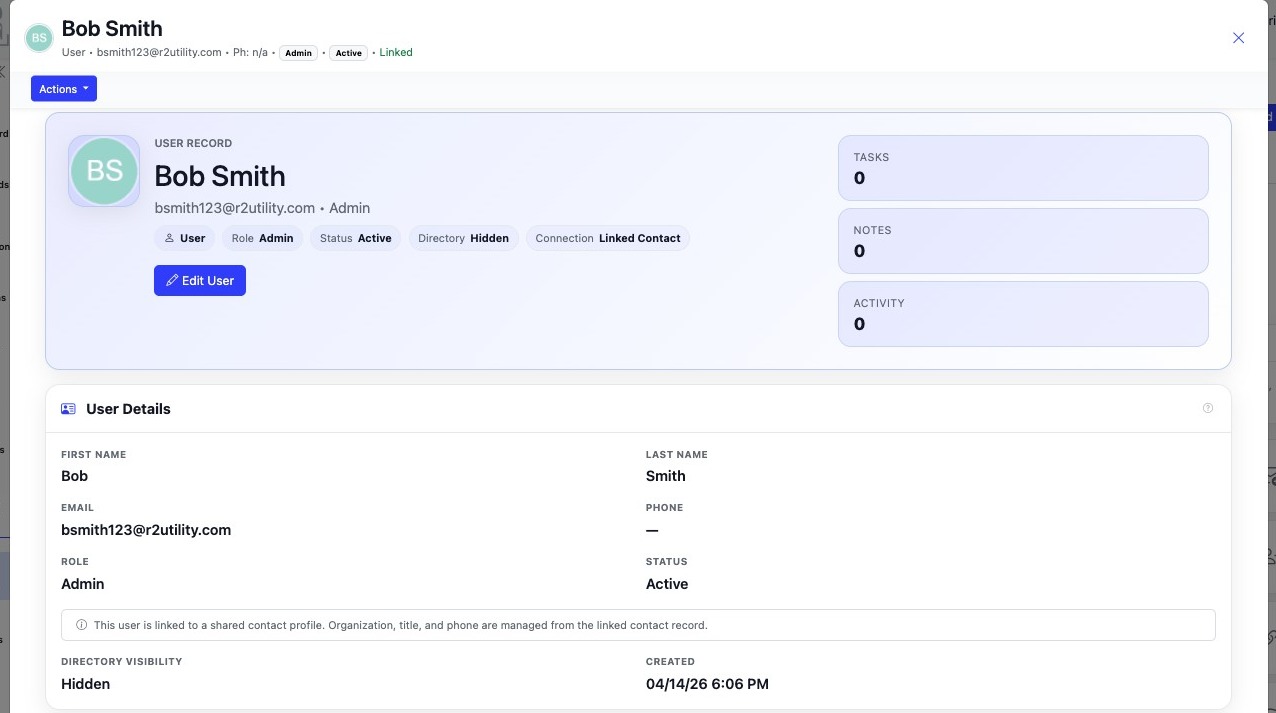
After creating a user, you can strengthen the user record by completing profile details, adjusting preferences, and linking work and files to the user. A complete user record helps keep communication, assignments, and activity tracking organized across your system.


Common Next Steps
  • Edit Profile Details to confirm the user’s name, phone number, and avatar.
  • Adjust Notification Preferences to control how the user receives email or in-app alerts.
  • Update the user’s Password if needed.
  • Add or assign Tasks so the user can begin participating in workflows.
  • Attach Files related to the user when documentation or reference material is needed.
  • Review Activity to see actions and updates associated with the user.
Helpful Tips
  • Encourage users to upload an avatar so team members can quickly recognize who is assigned to work.
  • Use notification settings to balance immediate alerts with less frequent summaries.
  • Review activity history when troubleshooting workflow questions or tracking user actions.