Skip to content
Learning Center How-To Guides Add Assets

How to Add Assets

Add assets with consistent naming, categories, and an Asset Number so tasks, GPS tracking, and reporting stay accurate.

Before You Start

An Asset is a record used to track a specific piece of equipment or infrastructure tied to a location. Assets serve as the central record for ongoing work and history – locations, tasks, notes, files, notices, and activity can all be linked directly to the asset.


What You’ll Need
  • Asset Name – the primary label everyone will recognize.
  • Asset Number – your internal tracking number.
  • Asset Type Category – helps organize data input and filtering.
  • Location – where the asset physically lives.
Helpful Tips
  • Use Asset Name for clarity, and use Asset Number for tracking and uniqueness.
  • If you don’t have categories finalized yet, start with No Category and standardize later.
  • Even though location is optional, linking a location early keeps dashboards and records organized.

Quick Add Asset

Quick Add Asset creates a new asset using a faster, streamlined entry flow. It’s best when you need a record created quickly – you can fill in deeper details later from the Asset Summary Page.


How To Open Quick Add
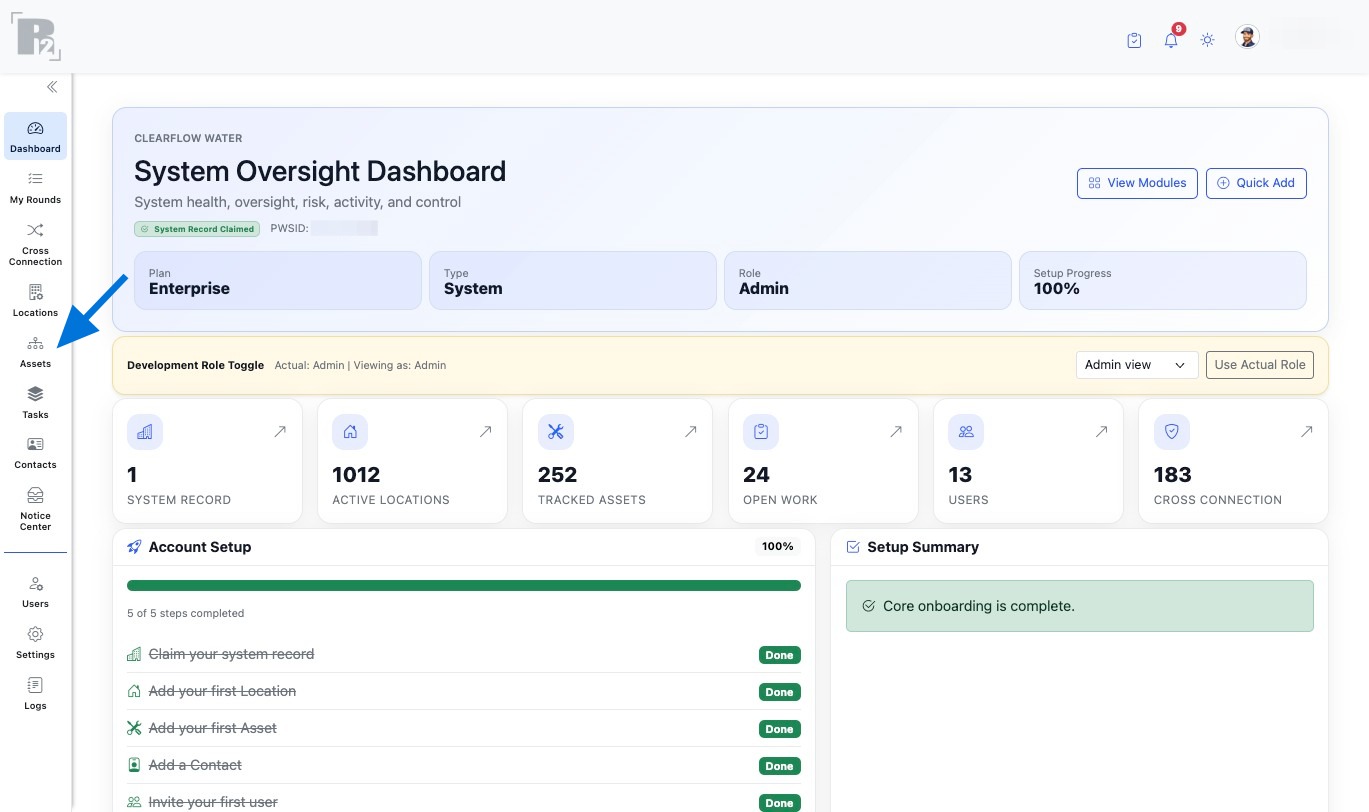
  1. Click Assets on the left sidebar to open the Assets Dashboard.
  2. Click Quick Add Asset.
Take Photo & Set Location (Optional)
  • Take Photo attaches a photo while creating the asset (useful for quick identification).
  • Set Location captures a GPS location for the asset if you’re onsite.
Quick Add Fields
  1. Click Take Photo (Optional).
  2. Click Set Location to capture GPS coordinates (Optional).
  3. Enter Asset Name.
  4. Select an Asset Type (Category) or leave as No Category.
  5. Link a Location (Optional).
  6. Click Add Asset to save.
Helpful Tips
  • If you don’t know the category yet, start with No Category and update it later.
  • Choosing different asset categories may change the input fields in the form.
  • If the asset belongs to a site, assign a Location now so your asset list stays organized.

Add Asset

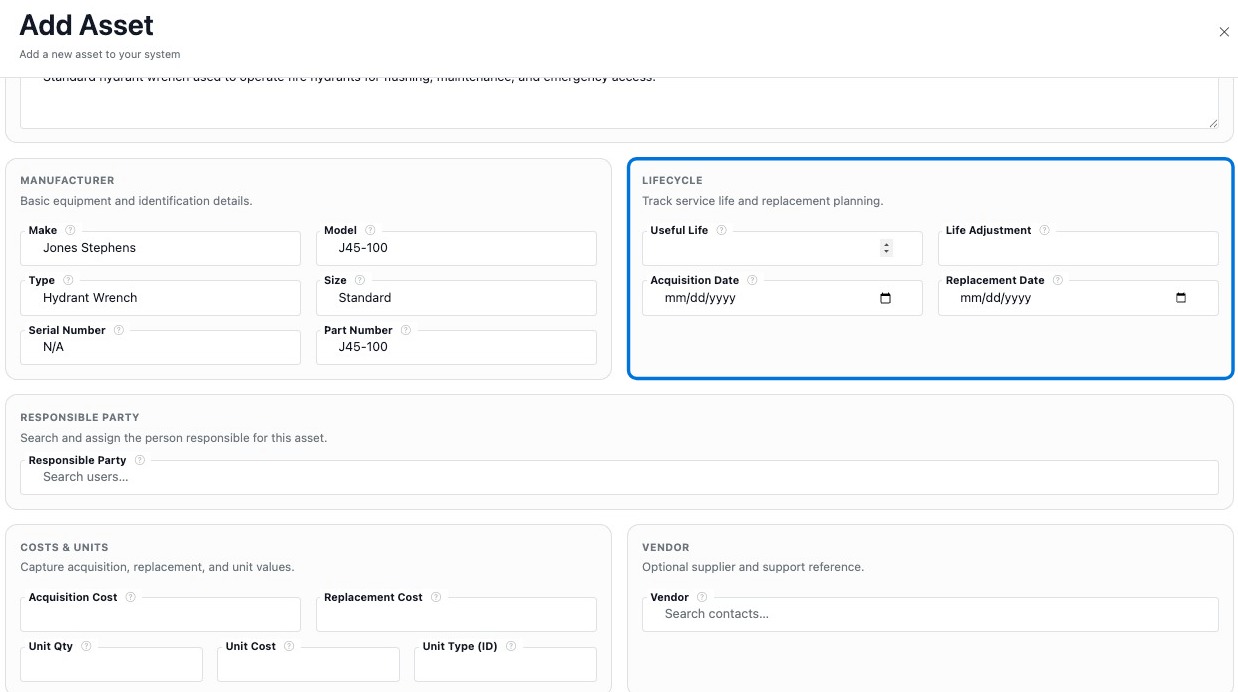
Use Add Asset to create a complete asset record with identifiers, attachments, GPS coordinates, and optional manufacturer + lifecycle fields. If you’re not ready to fill everything out, you can enter the basics now and complete the record later from the Asset Summary Page.


How To Open Add Asset
  1. Click Assets on the left sidebar to open the Assets Dashboard.
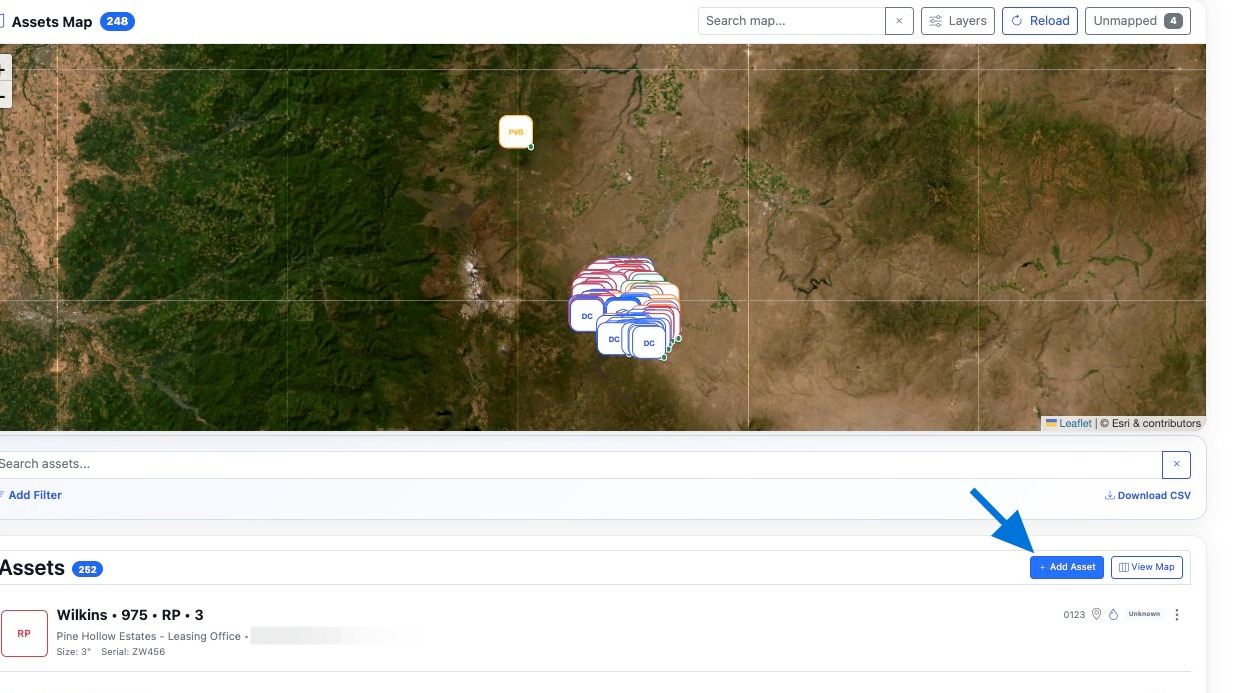
  2. Click + Add Asset.
Fill Order
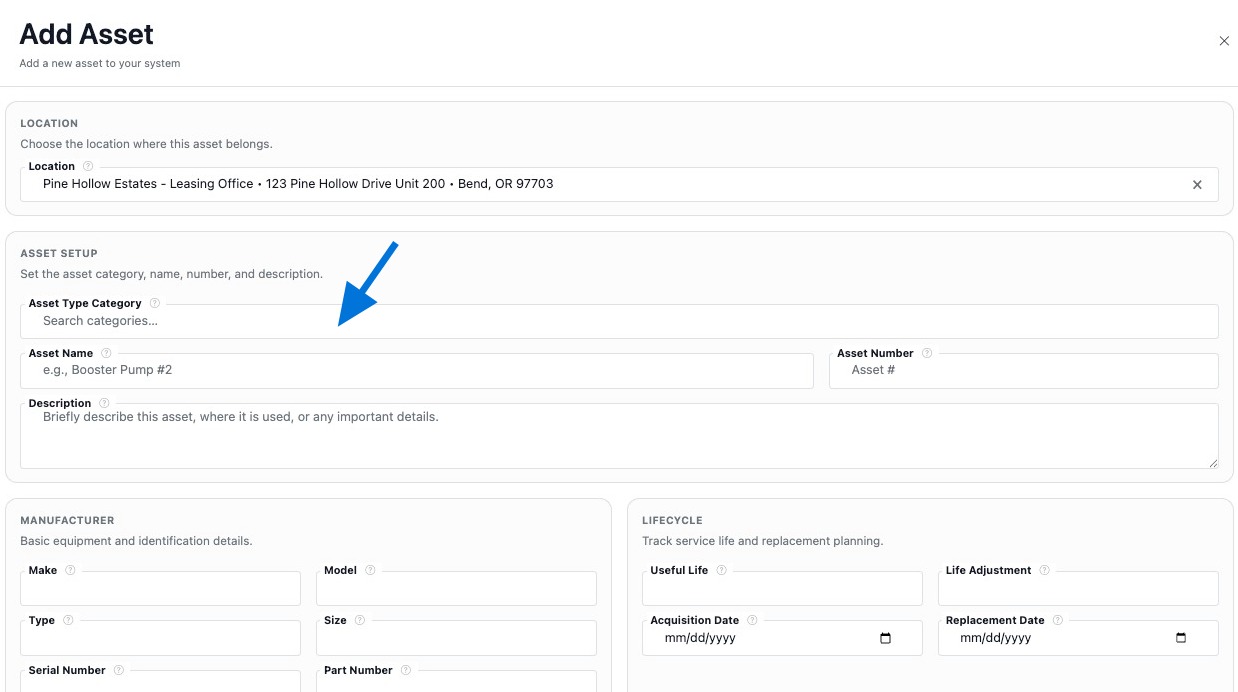
  1. Select Asset Type Category.
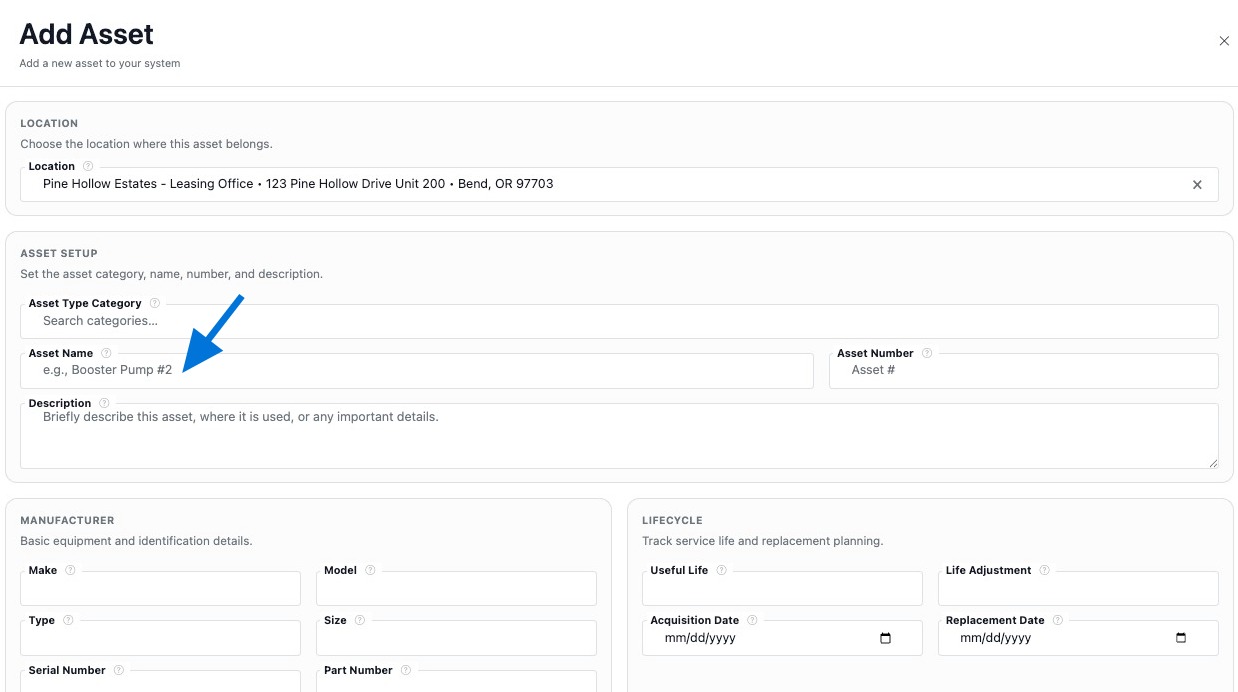
  2. Enter Asset Name.
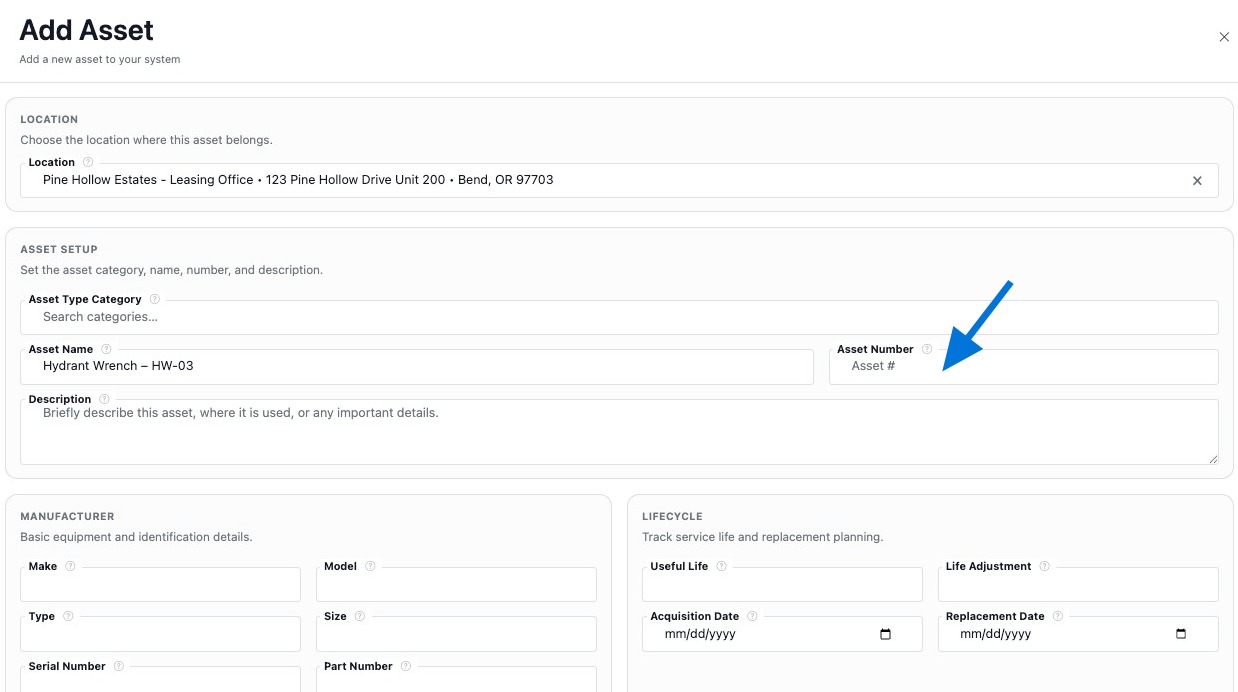
  3. Enter Asset Number.
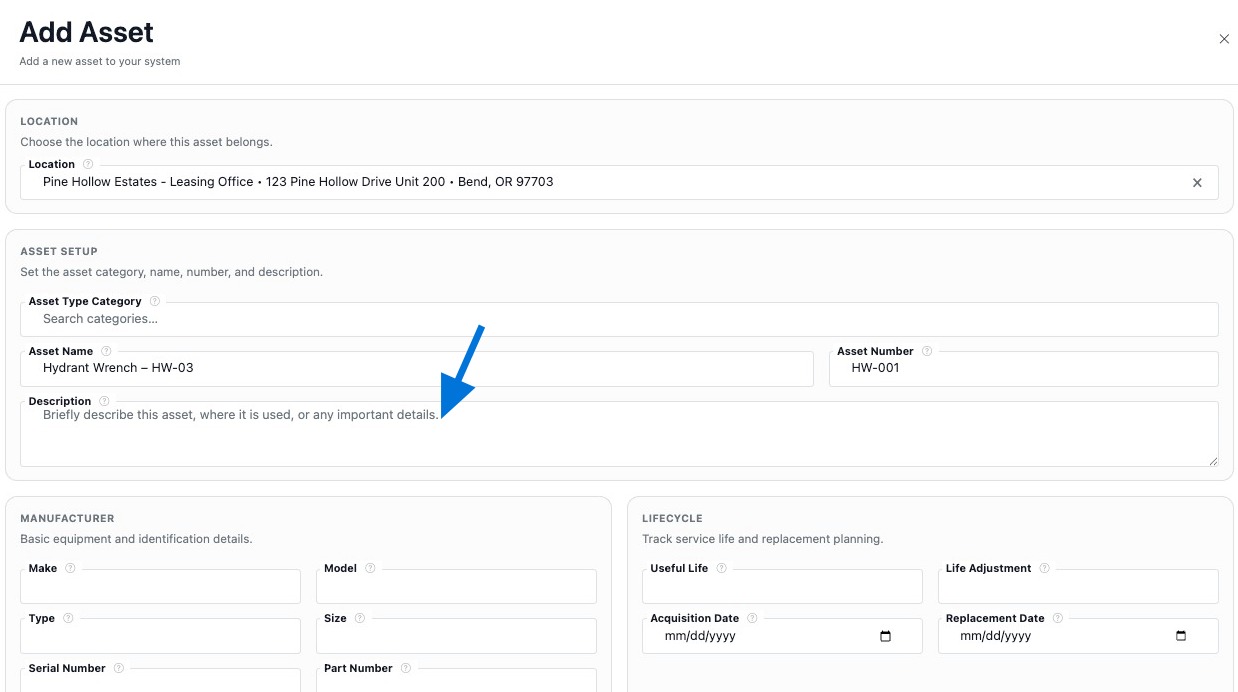
  4. Add Asset Description.
  5. Set Responsible Party.
  6. Add Photos / Files.
  7. Add GPS Coordinates or click Use Current Location.
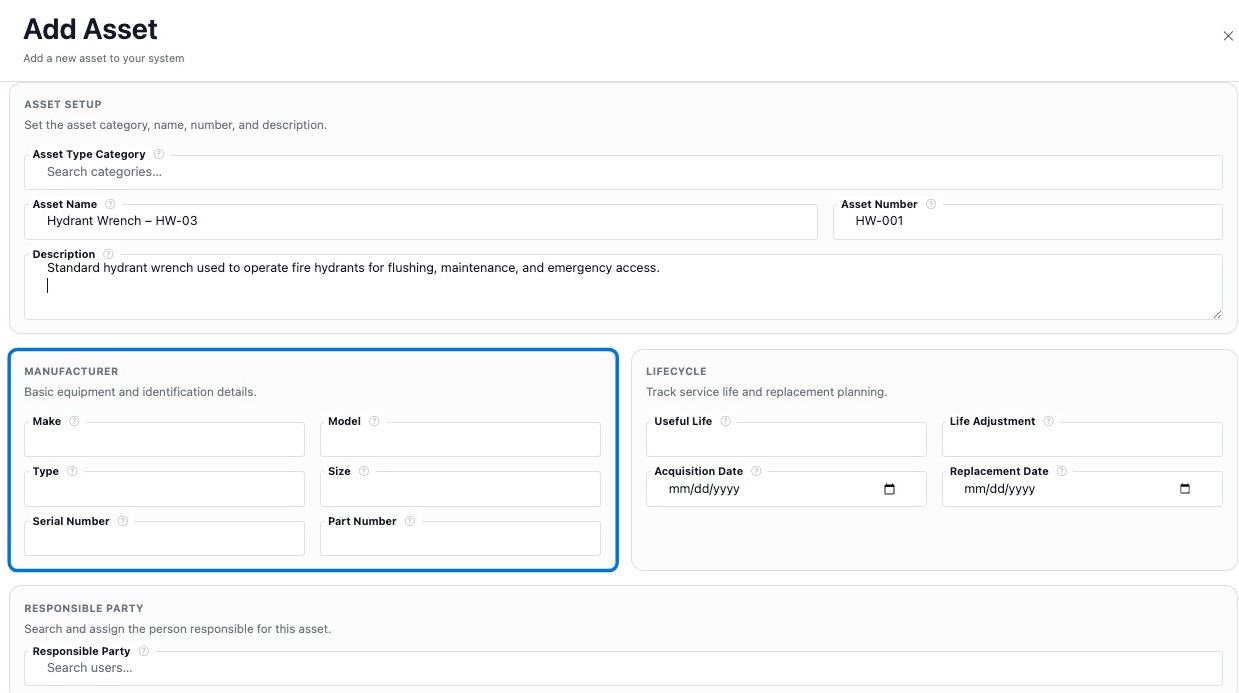
  8. Fill Manufacturer Details + Additional Details if you track lifecycle / cost.
  9. Add Vendor fields if necessary.
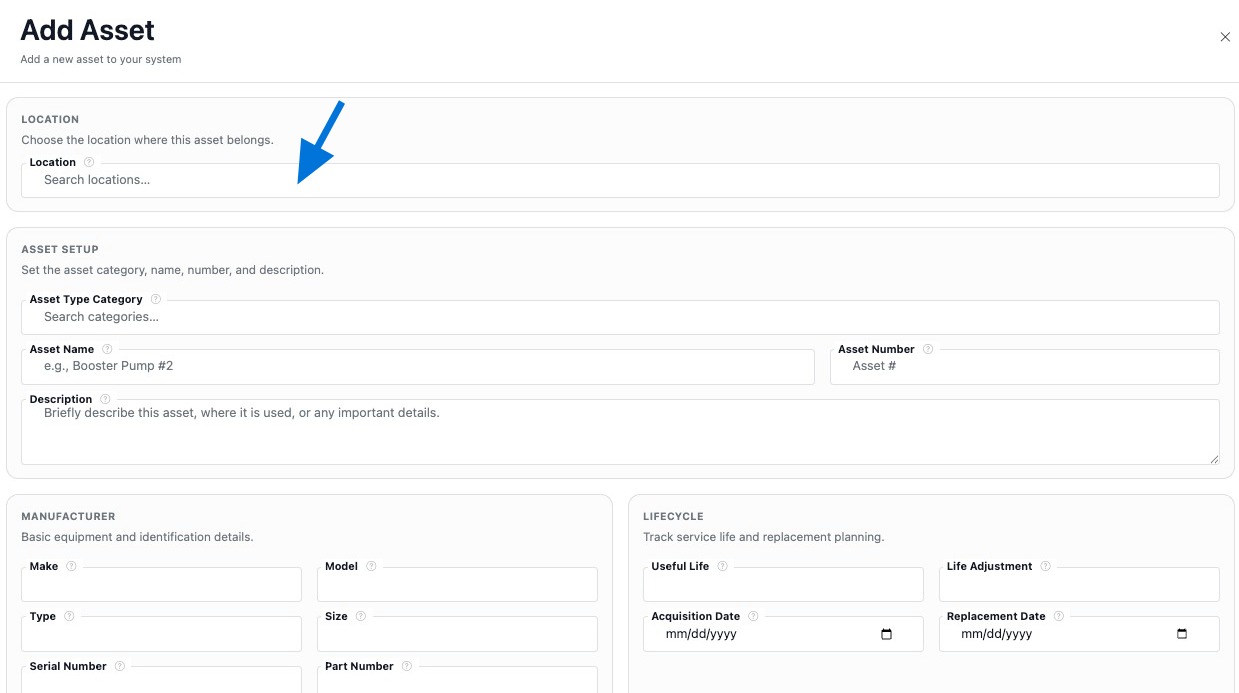
  10. Link the asset to a Location under Physical Location.
  11. Click Create Asset.
Basic Info
  • Asset Type Category – used for organization, filtering, and consistent reporting.
  • Asset Name – a clear label people will recognize in lists, tasks, and reports.
  • Asset Number – your internal tracking number used for matching records, imports, and internal reference.
  • Asset Description – optional context that helps others understand what the asset is or how it’s used.
  • Responsible Party – optional assignment to a user for ownership, routing, and accountability.
Photos / Files
  • Attach photos, manuals, cut sheets, SOPs, or inspection PDFs tied to the asset.
  • Use files to reduce repeat field visits and keep service documentation in one place.
GPS Coordinates
  • Save Latitude and Longitude for mapping and onsite accuracy.
  • Use Use Current Location when you’re onsite for best results.
Manufacturer Details
  • Make, Model, Type, and Size help standardize the asset for service and reporting.
  • Part Number and Serial Number improve long-term tracking, replacements, and warranty support.
  • Useful Life supports lifecycle planning (optional).
Additional Details
  • Acquisition Date / Replacement Date – helpful for lifecycle planning and scheduling.
  • Acquisition Cost / Replacement Cost – supports budgeting and forecasting.
  • Life Adjustment – optional field used when you need to adjust expected lifespan.
  • Unit Qty, Unit Cost, and Unit Type – optional tracking fields (varies by workflow).
  • Notes – store asset-specific context, constraints, or service history.
Vendors
  • Product Vendor – who supplied the asset.
  • Parts Vendor – where parts are sourced.
  • Maintenance Vendor – who services the asset.
  • Support Vendor – manufacturer / support contact.
Physical Location
  • Location – links the asset to an existing location record (recommended for reporting and workflows).
Helpful Tips
  • If the correct location isn’t listed, create it first (see Add Locations), then return and link it here.
  • Standardize Asset Numbers early (example: BF-00142, MTR-1029) to avoid duplicates.
  • If you’re onsite, set GPS while you’re there so field verification is easier later.

Edit Asset

Edit assets any time to update names, category, status, tracking fields, GPS, or location assignment. By default, edit actions are accessed from the 3-dot menu on the asset row.


How To Edit an Asset
  1. Go to Assets to open the assets list.
  2. Find the asset row you want to update.
  3. Click the 3-dot menu on that row.
  4. Select Edit Asset.
  5. Update the fields you need.
  6. Click Save Changes.
Common Fields You Can Edit
  • Asset Type Category, Asset Name, Asset Number, Status, Description
  • Assignment: Location and Responsible Party (if enabled)
  • GPS Coordinates: Latitude, Longitude, and Accuracy (if shown)
  • Manufacturer Details: make / model / type / size + part / serial (optional)
  • Additional Details + Vendor fields (may vary by setup)
Helpful Tips
  • Keep Asset Number consistent and unique – it’s the easiest field to match later.
  • If you change the linked Location, confirm it’s the correct site before saving.
  • Use Use Current Location when updating GPS onsite for best accuracy.
  • After saving, open the Asset Summary Page to confirm the record looks right.

Build the Asset Record

After you add an asset, keep building the record so the Asset Summary Page and Asset Summary Cards stay useful. Adding notes, files, tasks, GPS, and notices helps your team see everything connected to the asset at a glance.


Where To Build the Record
  1. From the Assets Dashboard, click the asset row to open its Asset Summary Page.
  2. Use the Summary Page workspace and Summary Cards to view and manage everything tied to the asset.
Recommended Next Steps
  1. Confirm identifiers – verify Asset Name, Asset Number, and category so the record is easy to match in the field and in reporting.
  2. Add Notes – save access instructions, constraints, service history, and internal context.
  3. Add Files – upload photos, manuals, cut sheets, maps, and supporting documents.
  4. Create Tasks – build work orders, inspections, and recurring work tied to the asset.
  5. Set GPS Coordinates – save latitude / longitude so field staff can verify the exact position onsite.
  6. Add Notices – add compliance notices / reminders when notices are required for this asset.
  7. Review Activity – confirm what changed, who changed it, and when.
  8. Confirm Location Details – make sure the linked location is correct and complete.
What This Improves
  • Asset Summary Cards show more complete snapshots for quick review and navigation.
  • Searching & filtering improves when identifiers, category, and location assignment are consistent.
  • Reporting is cleaner when assets are linked to the correct location and have consistent categories.
  • Sharing is more useful when the record has the right details, notes, and supporting files.
  • QR Code & Share Access is more effective when the asset record is complete for external viewing.
Helpful Tips
  • If the asset moves, update the linked Location and refresh GPS data as needed.
  • Keeping manufacturer + serial / part fields updated makes replacements and long-term tracking easier.
  • Add at least one photo for hard-to-find installs so field staff can verify the correct equipment.