Skip to content
Learning Center How-To Guides Add Tasks

How to Add Tasks

Create tasks with clear names, types, priorities, and due dates so work stays organized, assigned, and trackable from start to completion.

Before You Start

A Task is an actionable work item tied to a Location and optionally an Asset. Tasks help you track maintenance, inspections, follow-ups, and workflow steps from start to completion.


What You’ll Need
  • Task Name – a clear title describing the work.
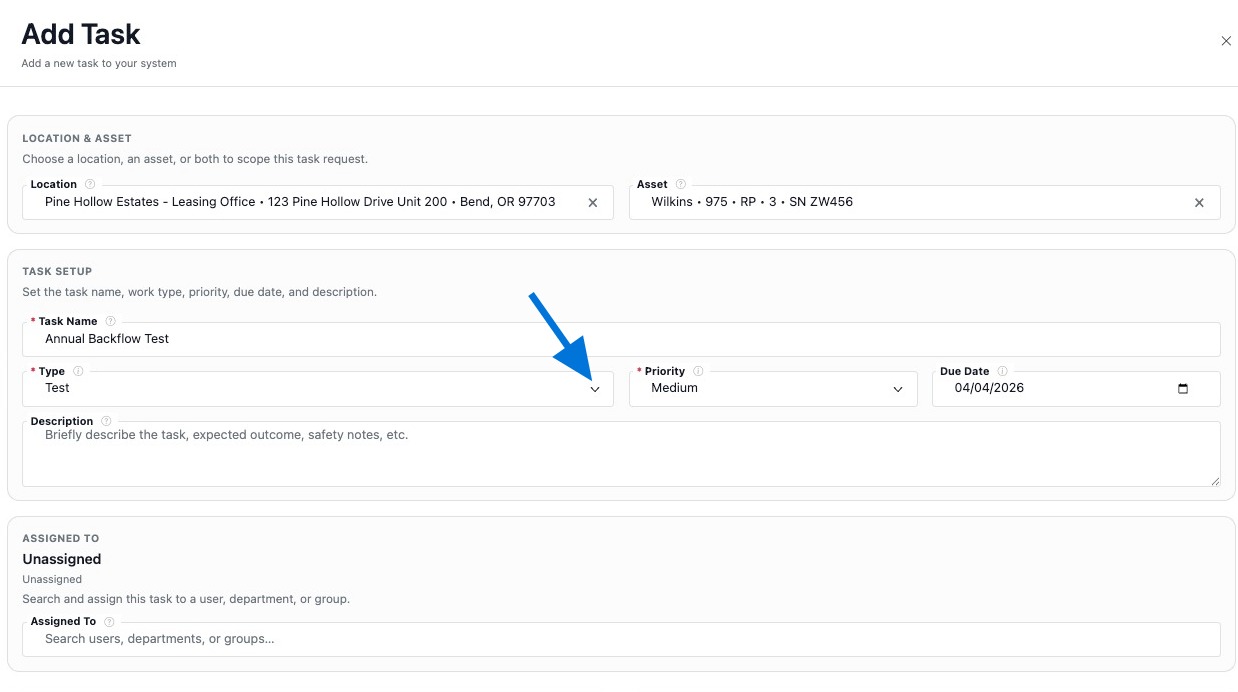
  • Type – categorizes the kind of work being performed.
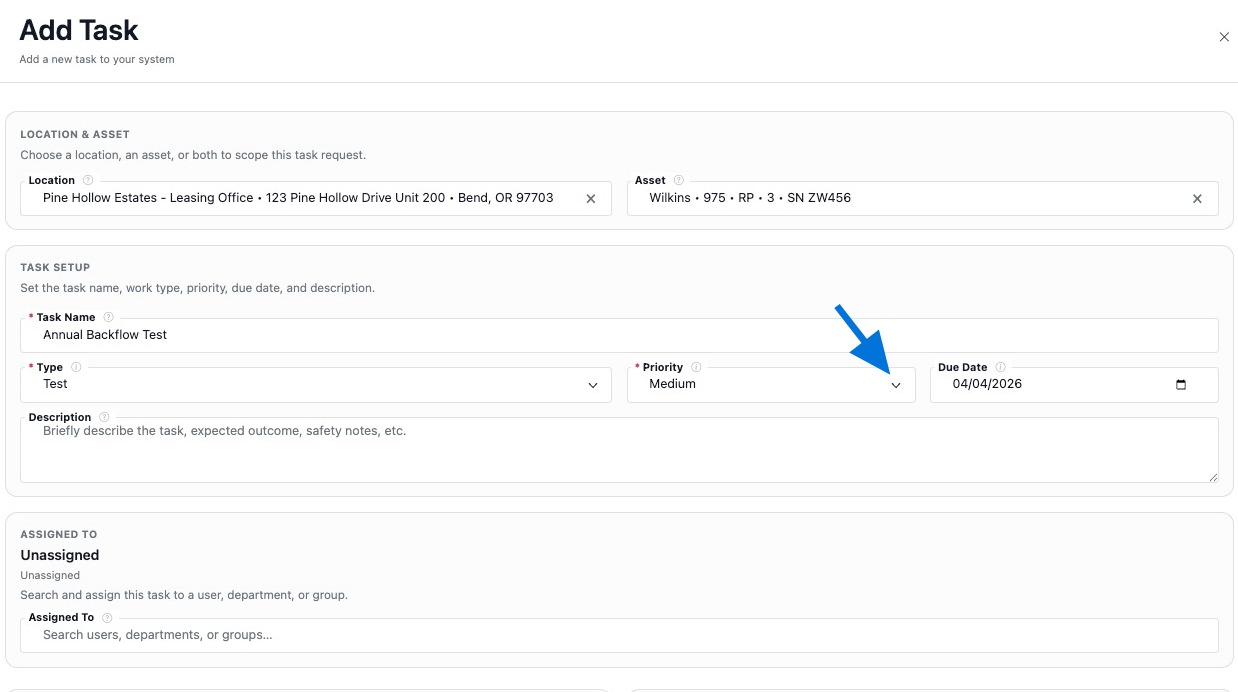
  • Priority – helps teams focus and plan.
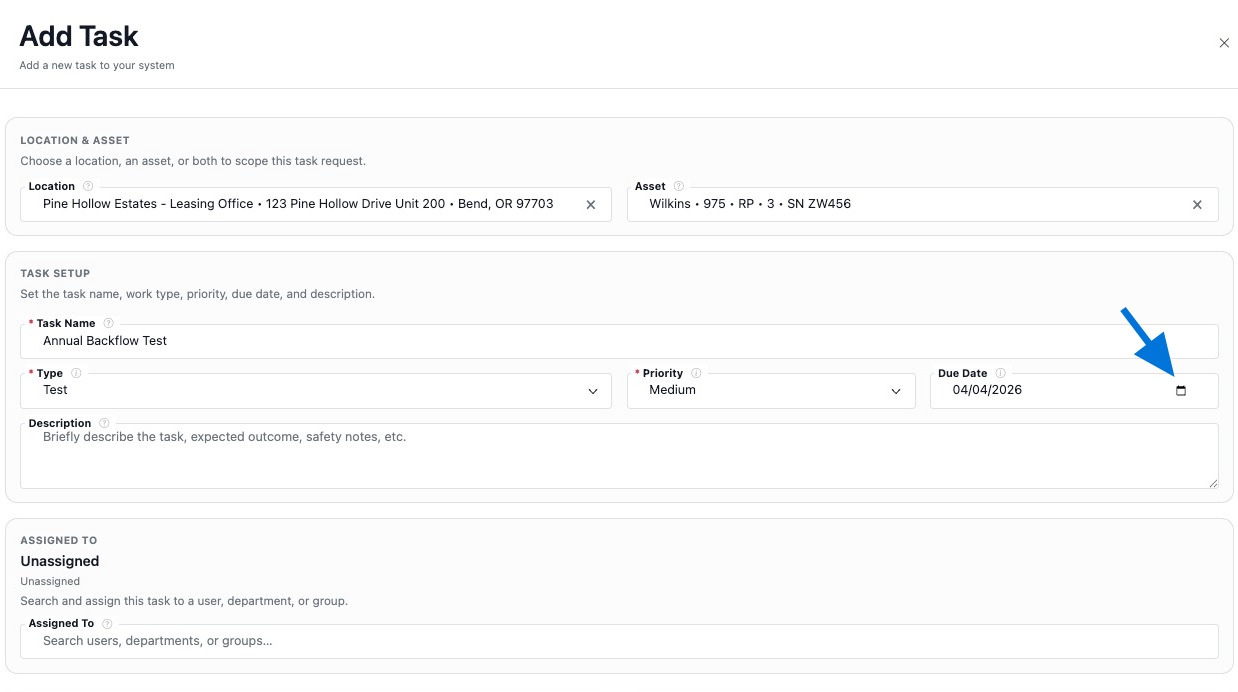
  • Due Date – tracks deadlines and highlights overdue work.
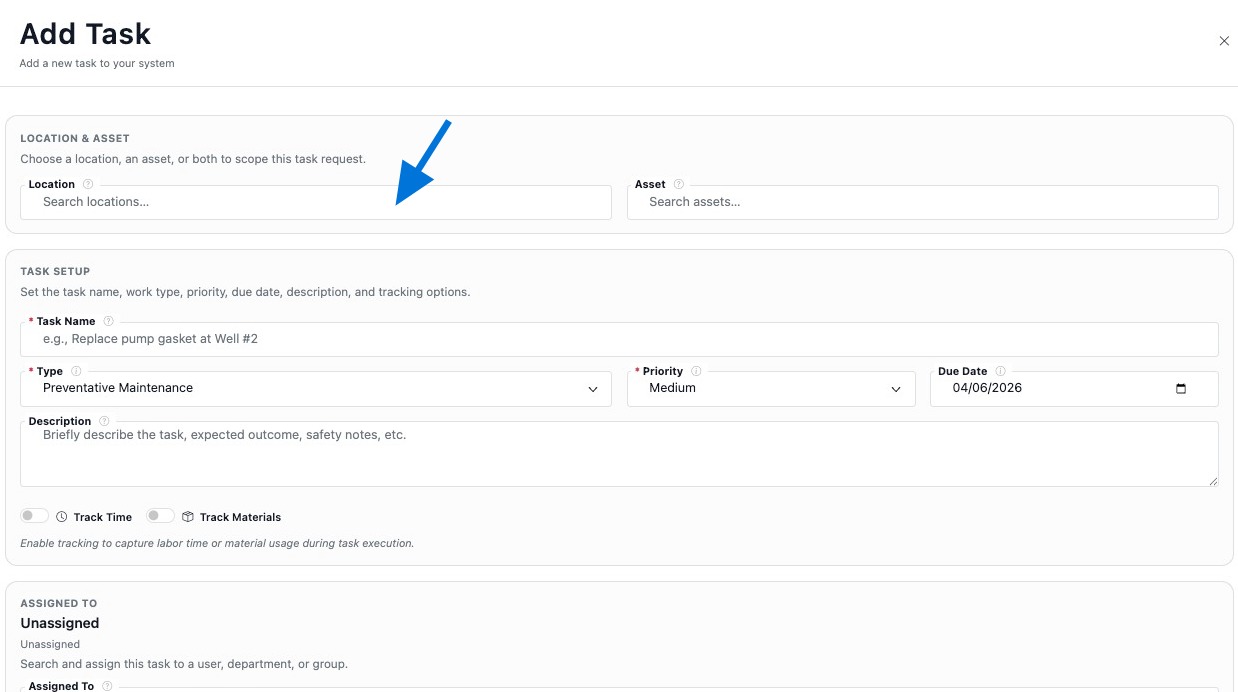
  • Location – the site where the work will happen.
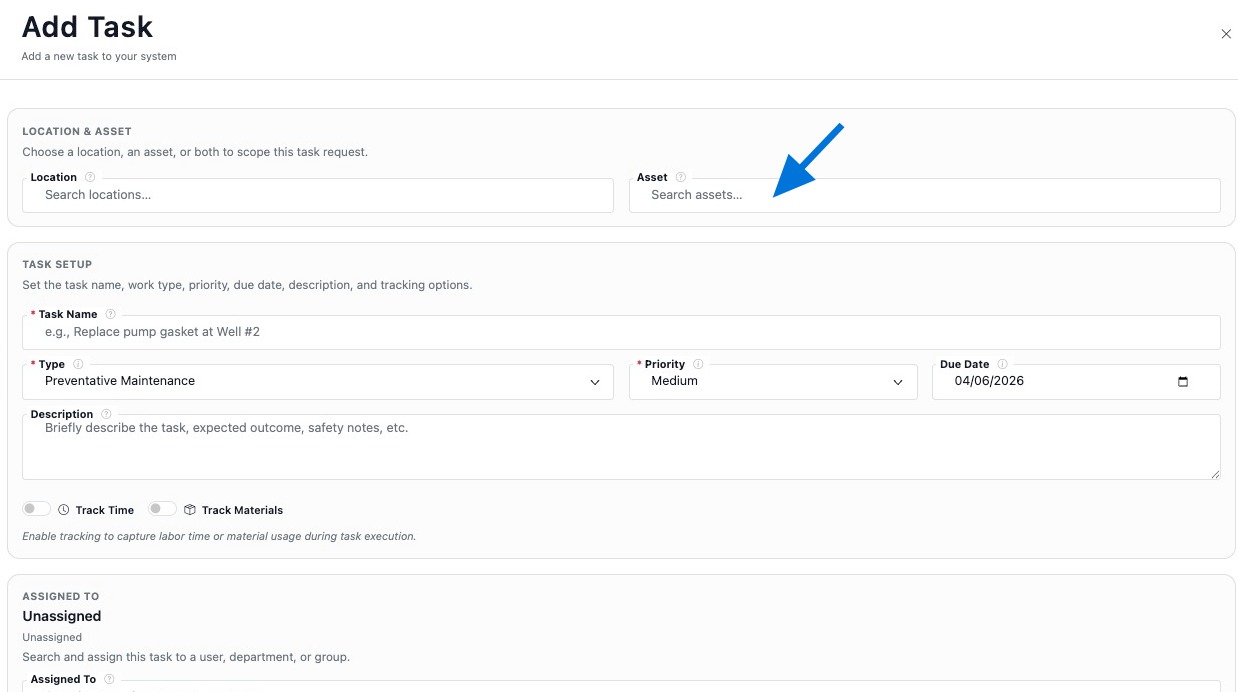
  • Asset (optional) – the specific equipment this task relates to.
Helpful Tip
  • Select a Location first to narrow the Asset list to that site.

Quick Add Task

Quick Add Task is a faster entry flow for creating a task when you need to get work into the system quickly. You can still add details like Description, assignment, and scheduling as needed.


How To Open Quick Add
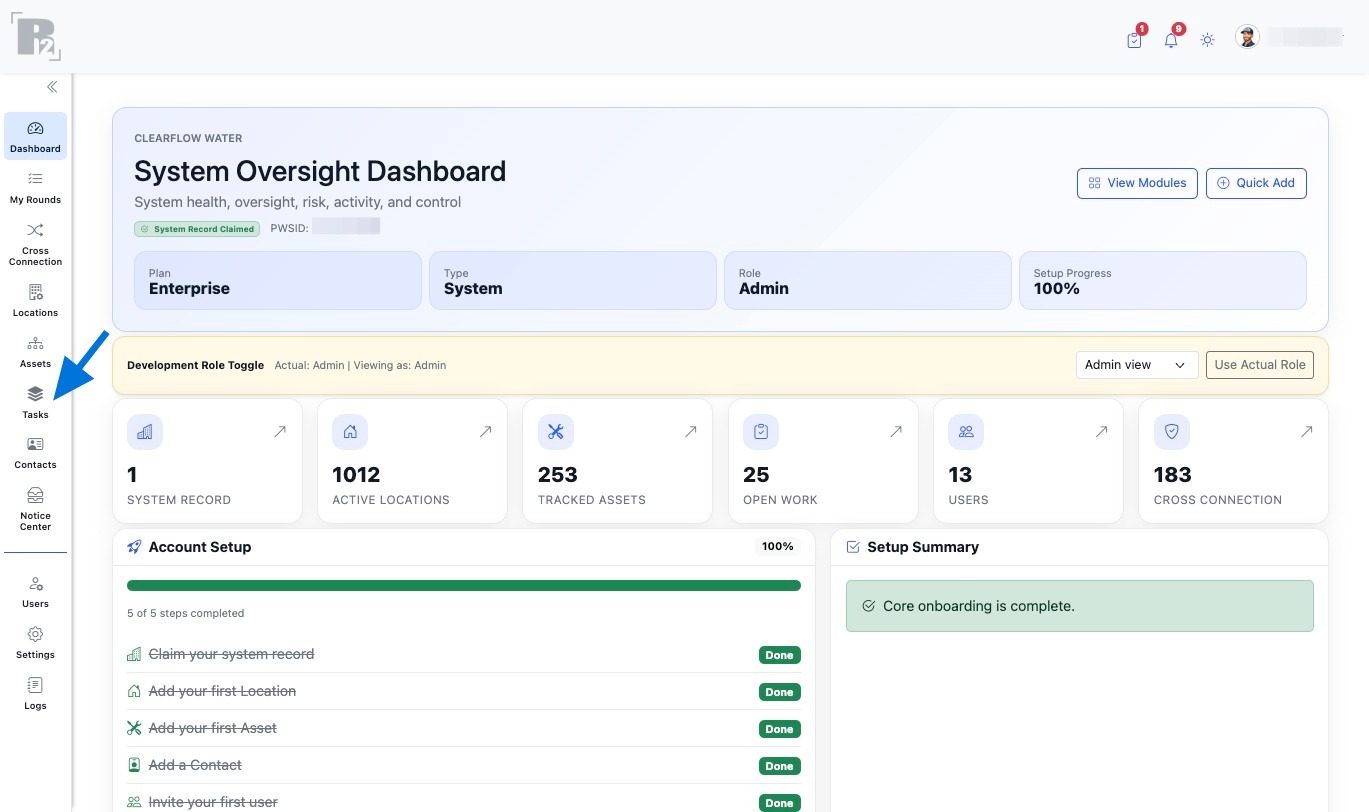
  1. Go to Tasks from the left side panel.
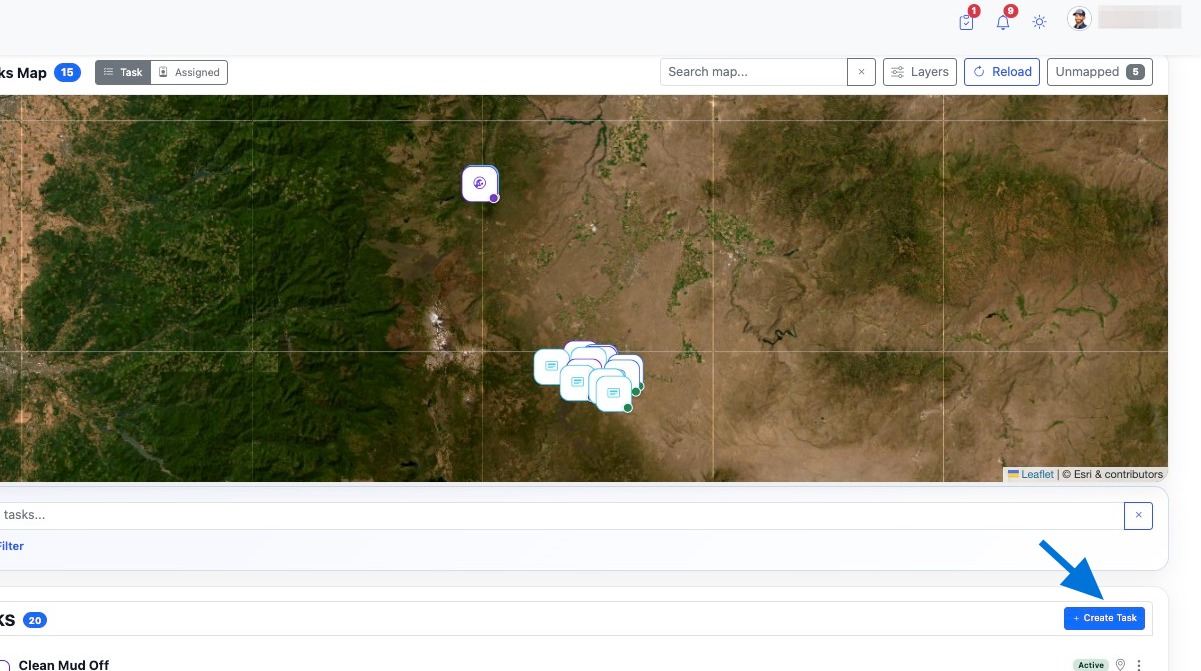
  2. On the Tasks Dashboard, click Quick Add Task.
Take Photo & Set Location
  • Take Photo lets you attach a photo to support the task and is useful for field documentation.
  • Set Location helps capture where the work will occur, then select the matching system Location.
Quick Add Fill Order
  1. Enter a clear Task Name.
  2. Select Type.
  3. Select Priority.
  4. Set the Due Date.
  5. Add a Description if needed.
  6. Select Location (recommended).
  7. Select an Asset if needed.
  8. Use Request / Assign to assign the task to a user if needed.
  9. Click Add Task to save.

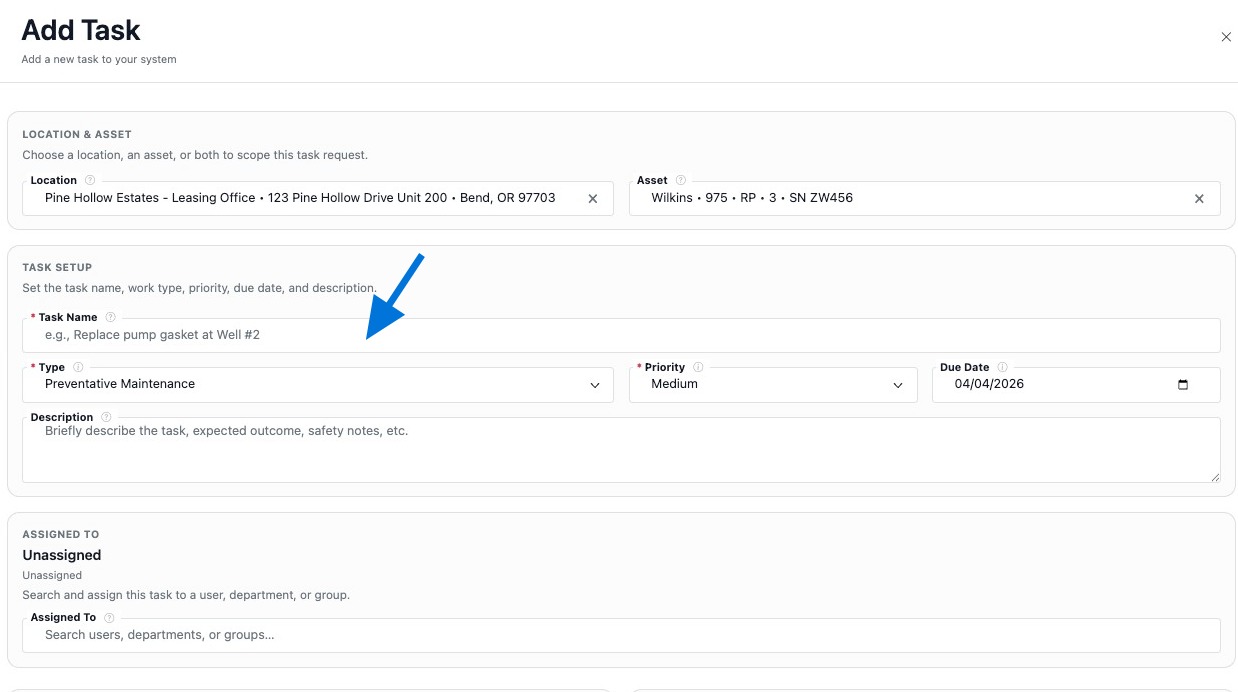
Add Task

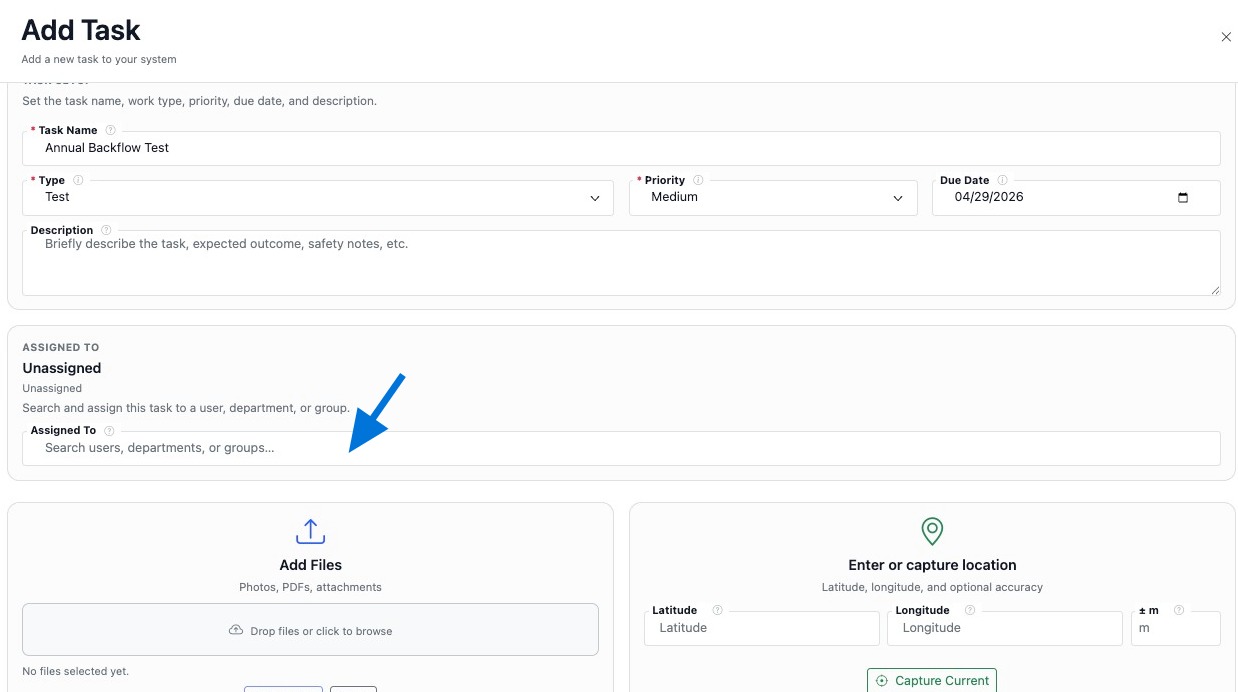
Use Add Task to create a complete work item with clear context tied to a Location and optionally an Asset, along with priority and due date. Tasks can also include attachments, procedures, triggers, actions, and scheduling.


How To Open Add Task
  1. Go to Tasks from the left side panel.
  2. Click + Add Task.
Fill Order
  1. Enter Task Name.
  2. Select Type.
  3. Select Priority.
  4. Set the Due Date.
  5. Add a Description if needed.
  6. Select Location.
  7. Select an Asset if needed.
  8. Use Request / Assign to assign the task to a user.
  9. Click Create Task to save.

Edit Task

You can edit a task any time to update its details, including status, priority, due date, assignment, and links to location and asset. Edits are accessed from the task row 3-dot menu.


How To Edit a Task
  1. Open the tasks list from the Tasks Dashboard or inside a record.
  2. Find the task row you want to update.
  3. Click the 3-dot menu on that row.
  4. Select Edit.
  5. Update the fields you need.
  6. Click Save Changes.
Common Fields You Can Edit
  • Task Name, Type, and Description.
  • Status, Priority, and Due Date.
  • Location and Asset.
  • Request / Assign (Assigned To).

Build the Task Record

After you create a task, you can build a more complete record by adding assignment, attachments, procedures, and workflow elements. This helps create a clear history of what was requested, what was done, and when.


What To Do Next
  1. Confirm core details – review Task Name, Type, Priority, Due Date, Location, and Asset so the work is tied to the correct record.
  2. Request / Assign – assign the task to a user for accountability and visibility.
  3. Add Files – attach photos, documents, and supporting records that belong with the task.
  4. Add Procedures – include step-by-step instructions for consistent work completion.
  5. Add Triggers – automate follow-ups or related workflow actions when needed.
  6. Add Action – create structured checklist-style actions tied to the task.
  7. Add Scheduling – set planned dates and recurring workflows when applicable.
What This Improves
  • Task records stay clearer and easier to manage from start to completion.
  • Assignments and accountability improve when users, dates, and procedures are tied to the task.
  • Task history becomes easier to review when files, actions, and workflow elements are added.
  • Reporting and follow-up are stronger when tasks contain complete context and supporting records.
Helpful Tips
  • Use Priority and Due Date together so the team can plan work realistically.
  • Link an Asset whenever the task is equipment-specific to improve maintenance history and reporting.
  • Attach photos and files to reduce back-and-forth and keep a complete record.